
Why a laptop battery does not charge
Check the power source
Use a charger with the correct voltage and wattage. With USB-C, the cable and adapter must both support the required power-delivery profile.
Watch the connector
Charging that appears only when the cable is moved can indicate cable, socket or solder-joint damage. Continued movement may damage the board.
Battery condition
A worn battery may charge slowly, show an inaccurate percentage or shut down when unplugged. Stop using a swollen battery.
Why measurements matter
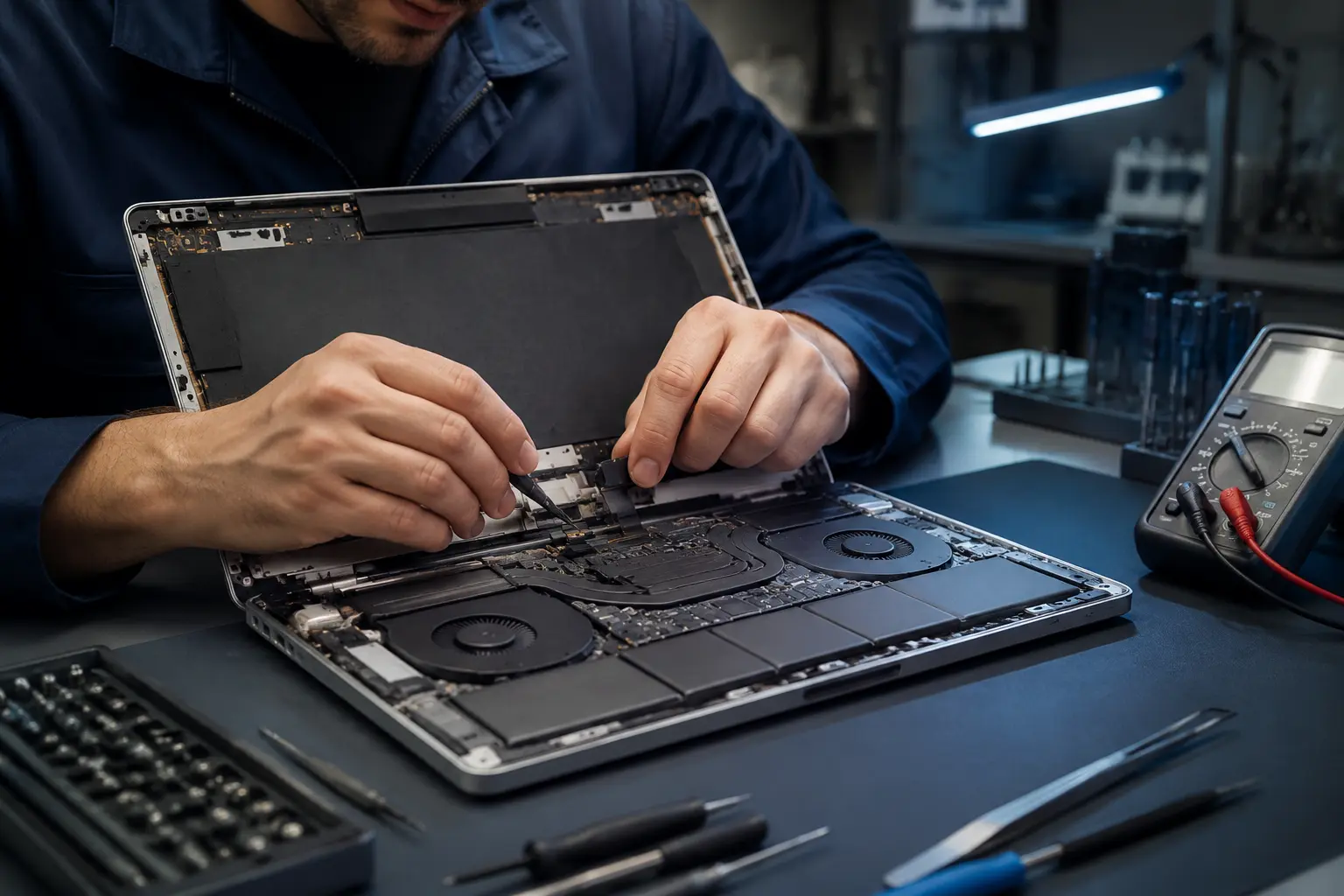
Diagnostics check charger output, battery health, the socket and the board charging circuit so a good part is not replaced unnecessarily.
Checks you can do yourself
Before seeking help, note the exact model, photograph any error message and record what happened before the symptom appeared. It is safe to check the wall outlet, cable, external devices and backup status. Do not open batteries, power supplies or system boards without the correct tools and experience.
Common mistakes to avoid
Repeated restarts, random “repair” utilities, unsuitable chargers and hot-air drying after a spill often make recovery harder. If you hear crackling, smell burning, see a deformed case or know that liquid entered the device, shut it down and disconnect power immediately.
Information that helps a technician
Explain when the fault began, whether it appears under load and whether there was an impact, spill, update or previous repair. Bring the charger when power is involved. We preserve customer data by default and erase it only at the customer’s request or with consent when required for the work.
Reducing the chance of recurrence
After repair, follow cooling advice, avoid stressing connectors, install updates from trusted sources and keep important files in at least two independent locations. Periodic checks of temperature, drive health and backups help identify developing problems before a major failure.