Do not wedge the plug in place
Do not hold the cable under tension, weigh it down or tape it at the angle where charging works. This may worsen contact damage or loosen the socket mounting. An intermittent connection can also become hot. Stop using the adapter and disconnect power if you notice scorching, sparks, unusual odour or damaged insulation.
Several locations can cause the same symptom
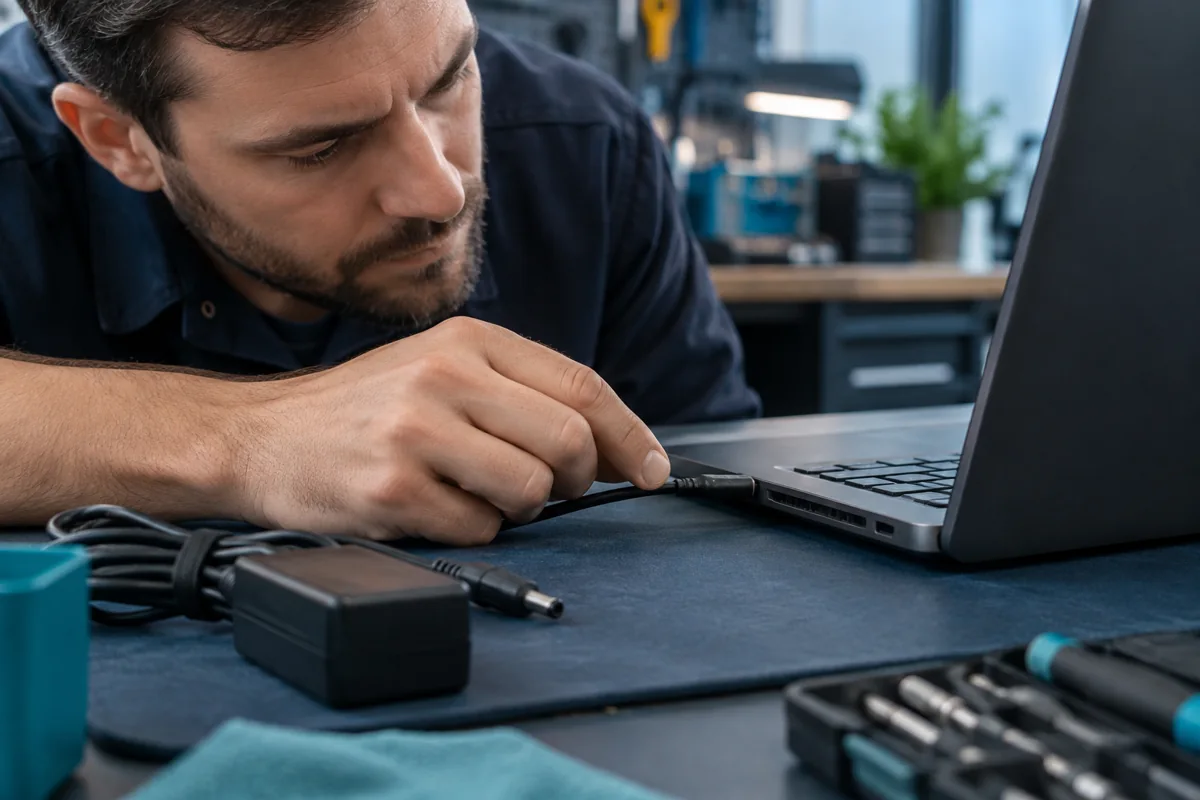
Damage may occur where the cable leaves the adapter, inside the plug or at the laptop socket. A changing charge indicator does not identify which part has failed. Inspect the disconnected cable and port visually without inserting metal tools. A short recording of normal symptoms may help a technician, but repeatedly bending a suspect cable is unnecessary.
Compare only with a compatible charger
A test charger must be suitable for the exact laptop. A similar barrel plug does not establish correct voltage or polarity. USB-C requires compatible power profiles, adequate output and a suitable cable. One comparison with a known suitable set can help; random adapters are not an appropriate test. Leave compatibility testing to a service centre if uncertain.
When the socket needs attention
If charging still drops out with a known compatible adapter, the laptop socket, internal cable and solder joints need checking. Some models use a replaceable socket module; others have a connector soldered to the board. A damaged USB-C port may also affect data or video. Repair scope depends on inspection, not simply the connector’s external appearance.
What to bring and how to avoid strain
Bring the laptop, its adapter and any detachable cable. Explain when the fault began and whether the connector suffered a knock. After repair, leave slack rather than pulling the cable over a desk edge. Disconnect by gripping the plug. Adapter repair and laptop port repair are separate services, with cost agreed after the faulty part is identified.
Need help?
Describe the symptoms and share the model. We agree on the work and price before repair.