Use separate media
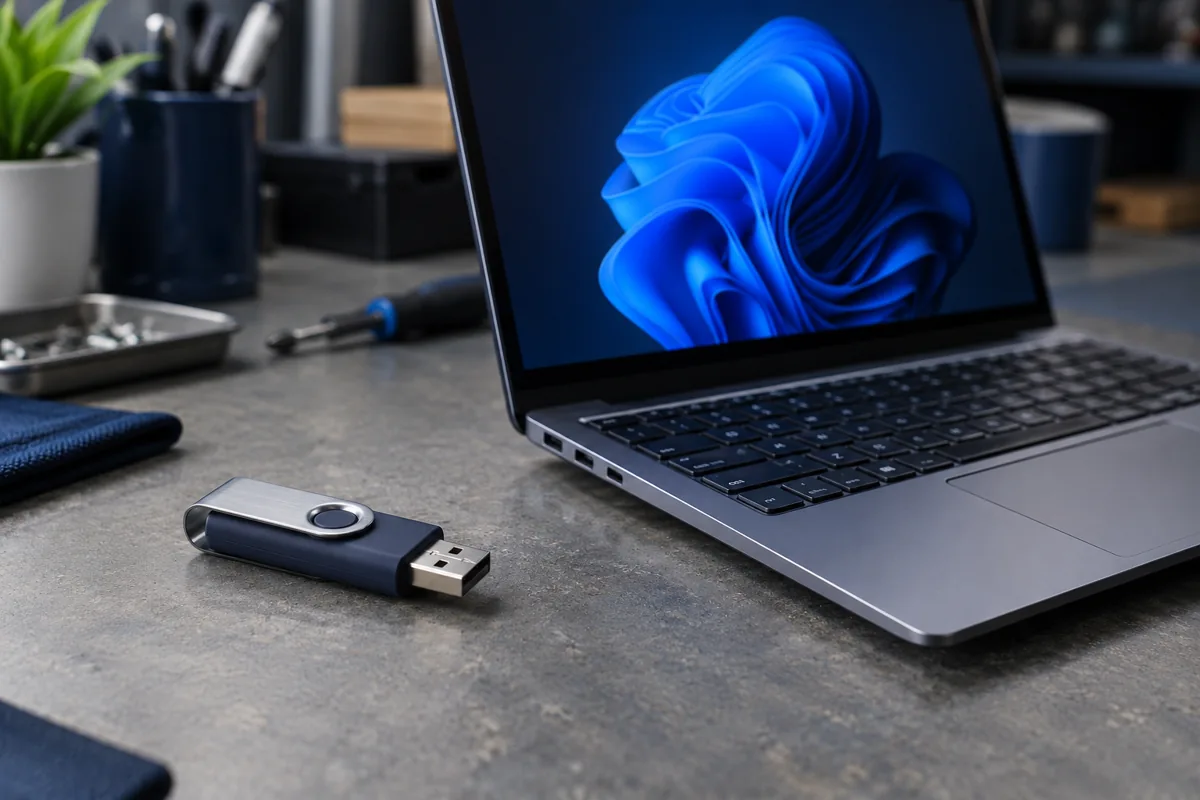
Creating an installation USB can erase its contents. Do not use the drive holding your only backup. Check the selected drive’s letter, capacity and name before confirming; similar USB devices are easy to confuse.
Use an official source
Microsoft provides installation-media tools and ISO downloads. Check architecture and computer support. Merely copying an ISO file onto a USB drive does not always make it bootable; follow the chosen official tool’s instructions.
Prepare potentially missing drivers
Save model-specific network and storage-controller drivers beforehand if required. Record the Windows edition. Check account access, licence details and encryption recovery information, but do not leave passwords in an openly accessible USB folder.
A boot test is not permission to erase
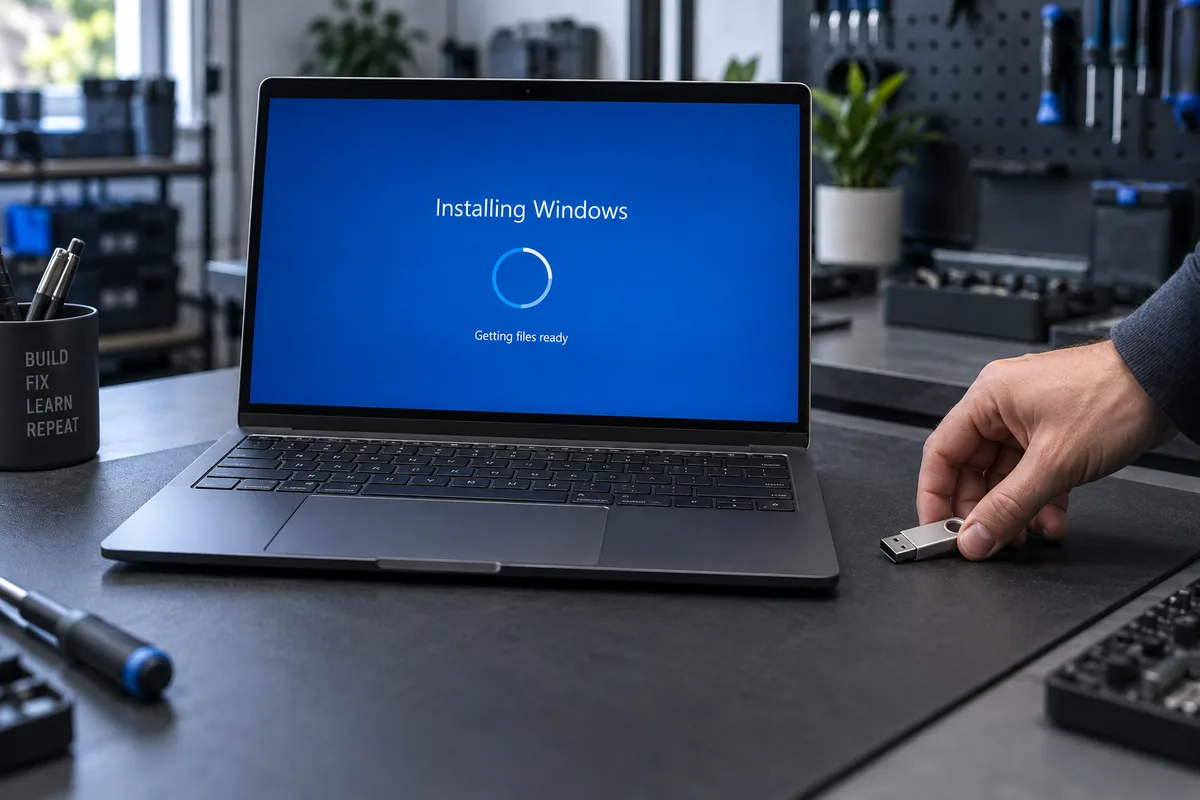
Reaching Setup does not require formatting anything. At the drive-selection stage, know what must remain. If the objective is repairing the existing system, a clean installation may be the wrong first step.
Official manufacturer guidance ↗
Need help?
Describe the symptoms and share the model. We agree on the work and price before repair.