Identify the exact stage
The computer might not boot from USB, Setup might not detect storage, or copying files might fail. Photograph the precise message and note whether it recurs at the same point. This separates media preparation from RAM, storage or system-requirement problems. Changing several settings at once makes diagnosis harder.
Decide what must be preserved first
Partition deletion and formatting buttons can destroy files. Stop and discuss preservation if the computer contains the only important copy. Keeping applications is different from copying documents. Identify the system and data drives carefully: similar capacity is not a reliable identifier.
Prepare suitable installation media
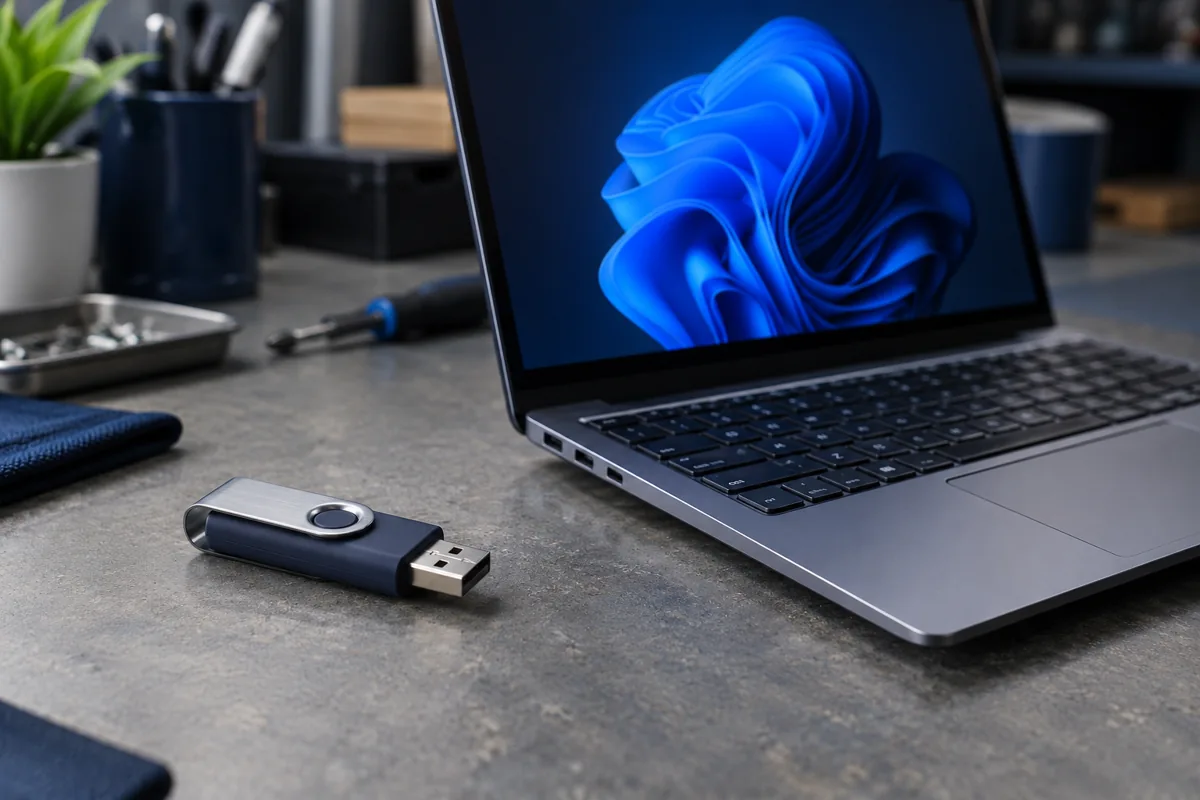
Use an official Microsoft source and the correct architecture. If USB errors are suspected, try reliable alternative media and a direct computer port without a hub. Back up the USB drive before preparing it, because its contents may be erased. Modified installers can introduce problems absent from the original version.
Compatibility and controller drivers
Check the chosen Windows version’s requirements and manufacturer support. If BIOS detects storage but Setup does not, a storage controller driver may be needed. Do not randomly disable Secure Boot or encryption or change RAID mode. These changes affect the existing system and access to data. Select drivers for the exact model.
When repeated installation changes nothing
Errors at different stages can indicate unstable RAM, storage or power. A tenth installation attempt is not a reliable repair strategy. The service centre first assesses hardware and installation conditions, then software. Provide the error photograph, model and whether the old system and files must remain intact.
Quick checks
| Situation | What to check | What it means |
|---|---|---|
| USB does not boot | Check official media and boot selection | This does not yet establish an SSD fault. |
| No drive in Setup | Compare BIOS detection and controller support | A driver may be needed. |
| Errors at different stages | Test RAM and storage stability | Repeated installation may not solve the problem. |
Need help?
Describe the symptoms and share the model. We agree on the work and price before repair.