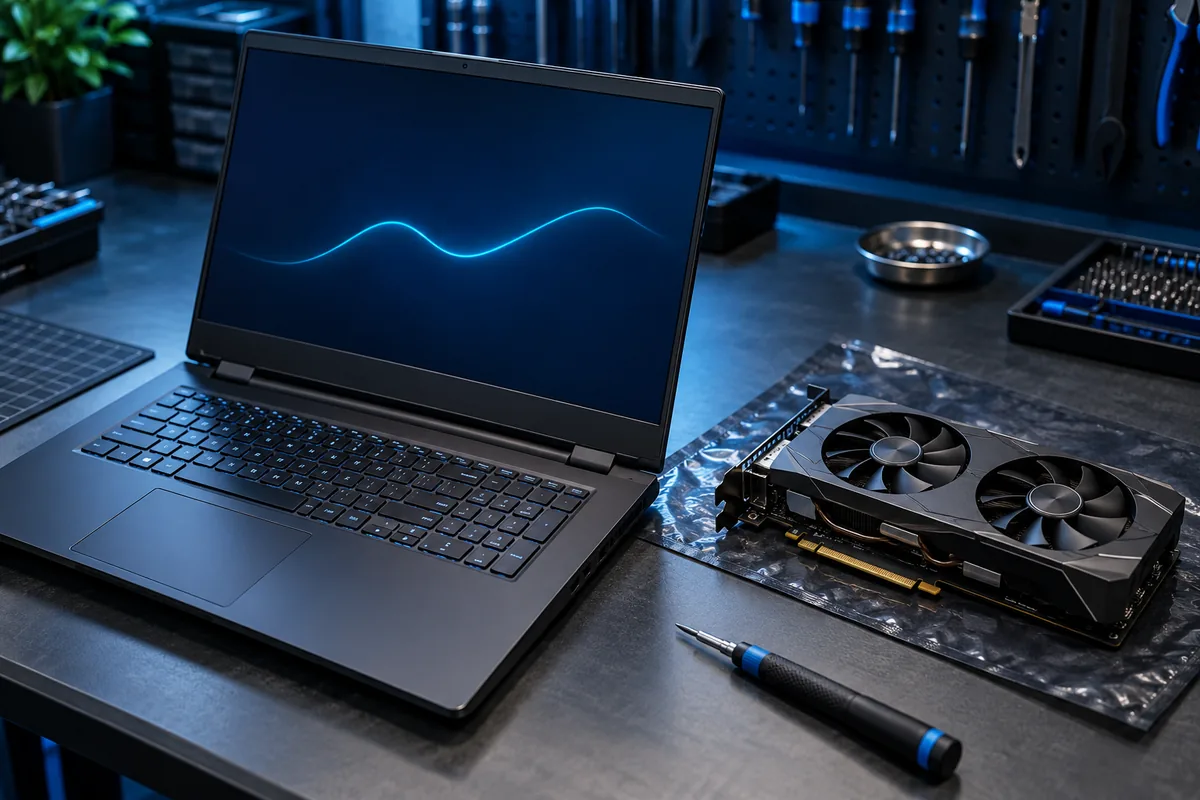
If the game already uses the intended GPU but still stutters: Games stutter on a powerful PC: where should you look?
Identify the game, not just its launcher
Record the computer model and the names of both graphics processors. Observe the game process rather than only its launcher or overall GPU activity. If the game provides an adapter selection, note the listed device. Seeing integrated graphics handle the desktop does not establish which processor renders the game, so avoid making a repair decision from that observation alone.
Set the preference for the right application
In Windows 11, open Settings → System → Display → Graphics. Select the game, open its options and choose the high-performance GPU where available. Add the actual game executable rather than just its launcher. Save the setting, fully close the game and launch it again. Returning to an existing game window is not the same as restarting the application.
Keep the comparison consistent
NVIDIA explains that a Windows graphics preference for an application can override its Control Panel preference. Change one setting at a time. For a useful comparison, connect the correct laptop power supply and record the power mode. Use the same game scene, resolution and quality settings after each change; otherwise a different workload can obscure what the setting actually changed.
When the dedicated adapter is missing
Check whether the device appears in Device Manager and record any error message. Obtain drivers for the exact computer model from its manufacturer rather than an unfamiliar driver updater. Do not disable integrated graphics as a first experiment. If a preference is missing, establish how your particular laptop manages graphics before reinstalling Windows or changing unfamiliar firmware settings.
Prepare a clear repair enquiry
If the intended GPU is selected but the game still struggles, record whether every game is affected, only one title, or only longer sessions. Send the model, game name and previous checks when asking about driver installation. A repeatable example helps decide whether software configuration is sufficient or whether cooling, power delivery or hardware also needs examination.
Sources and further reading
Need help in Vilnius?
Describe the symptoms and tell us your computer model. We will assess the situation, suggest suitable work and agree on the price before starting.