If you are choosing a graphics card before buying: Will a new graphics card fit your PC? A compatibility checklist
Start with the external display connection
Confirm that the monitor cable is connected to the graphics card, the correct monitor input is selected and the display is on. Record whether the picture is missing from startup or disappears only in a game. If the computer worked before installation, list exactly what changed. That evidence is more useful than assuming either the new cable or GPU must be defective.
Compare with a direct motherboard connection
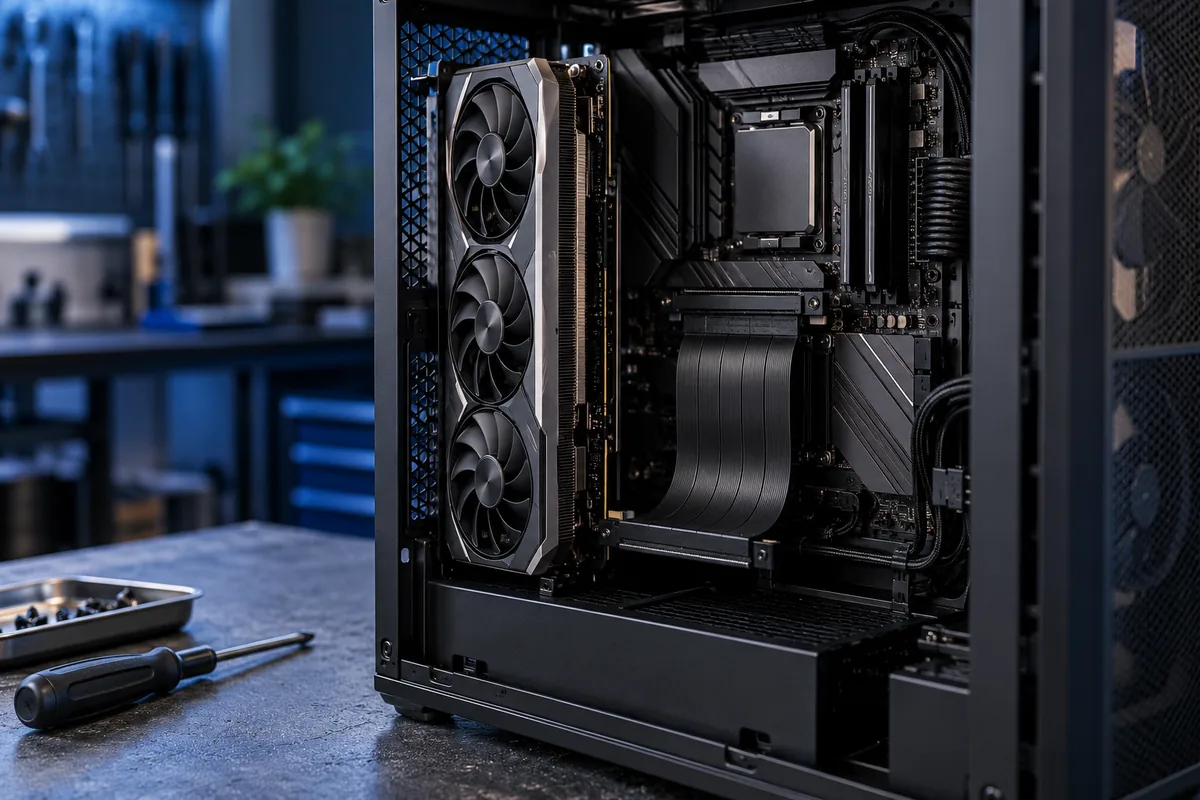
An important comparison is the same card in the main motherboard PCIe slot without the riser. Only perform that work if you have the necessary skills and can follow the case and motherboard instructions. Shut down and disconnect power before internal work. If installation is unfamiliar, leave the comparison to a technician. It helps assess the added connection without buying a replacement card first.
Check the supported PCIe generation
The graphics card, motherboard slot and extension need compatible operation. Corsair documents a case where its PCIe 3.0 cable requires selecting Gen 3 in the BIOS. This is a specific compatibility check, not a universal cure for black screens. Identify your cable specification first, record the original firmware setting and avoid changing unrelated settings as part of the same experiment.
Inspect installation and power with power disconnected
NZXT notes that a displaced riser connection can cause display problems. Seating, retention and cable routing should only be checked after shutdown and power disconnection. Do not pinch the ribbon against a sharp case edge or fold it tightly. Check GPU power connections against the card and power-supply instructions; do not arbitrarily mix modular cables from different power supplies.
Recognise when the investigation must widen
If the card also produces no picture in a direct slot, replacing only the riser may not solve the problem. Provide the GPU, motherboard, power-supply and cable models alongside comparison results. Decide on graphics-card replacement after assessing the system. Stop testing if there are burn marks, a damaged slot or uncertainty about the power connections, and arrange a diagnostic inspection.
Sources and further reading
Need help in Vilnius?
Describe the symptoms and tell us your computer model. We will assess the situation, suggest suitable work and agree on the price before starting.