Check both ends
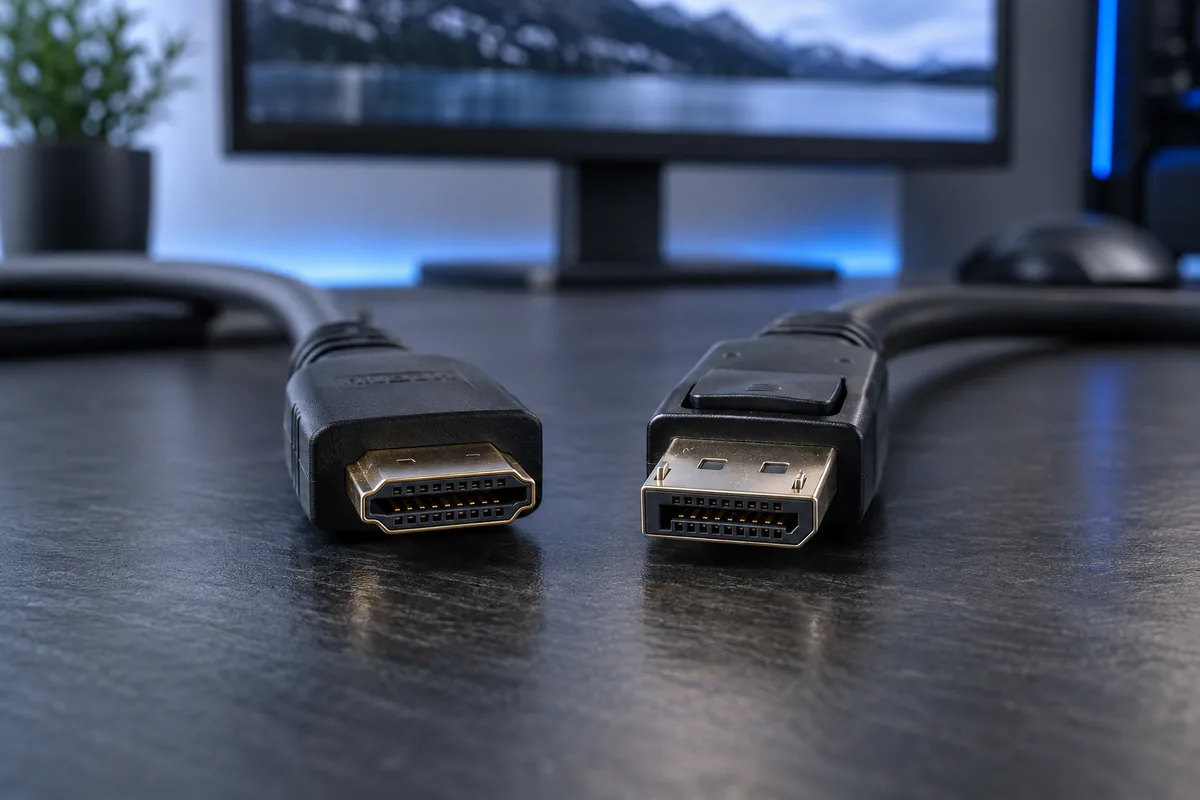
Connector shape does not establish the resolution and refresh rate a particular device supports. Read the computer and monitor specifications. HDMI and DisplayPort inputs on the same monitor may support different modes, regardless of similar-looking cables.
Cables and adapters can limit modes
A dock, hub or adapter may reduce the available mode. Test a direct connection with a suitable cable first. Not every adapter works in both directions. A higher-rated cable cannot increase the capability of the computer's output itself.
Select the correct mode
Check resolution and refresh rate in system settings. Some monitors also require a mode to be enabled in their own menu. Colour depth and additional features consume bandwidth too. Change one setting at a time to identify the limiting factor.
When to investigate a fault
If a previously working mode now flickers or disappears, try another suitable cable and input. Record the resolution, refresh rate and connection layout. This helps separate a compatibility limit from a damaged socket or monitor.
Need help?
Describe the symptoms and share the model. We agree on the work and price before repair.