Record the exact module details
Capacity and speed alone do not establish compatibility. The DDR generation, physical format and supported configuration must suit the computer. Photograph old and new module labels and record the motherboard or laptop model. Fitting the slot does not guarantee that the full kit will work reliably. Some laptops use soldered memory rather than replaceable modules.
The first start can take longer
Some platforms initialise memory after a change, making the first start slower. Consult the manufacturer’s guidance for timing and diagnostic lights. Do not repeatedly switch the system off every few seconds. Unusual heat or odour is a reason to disconnect power, however, rather than leave a potentially faulty device running unattended.
Installation requires power isolation
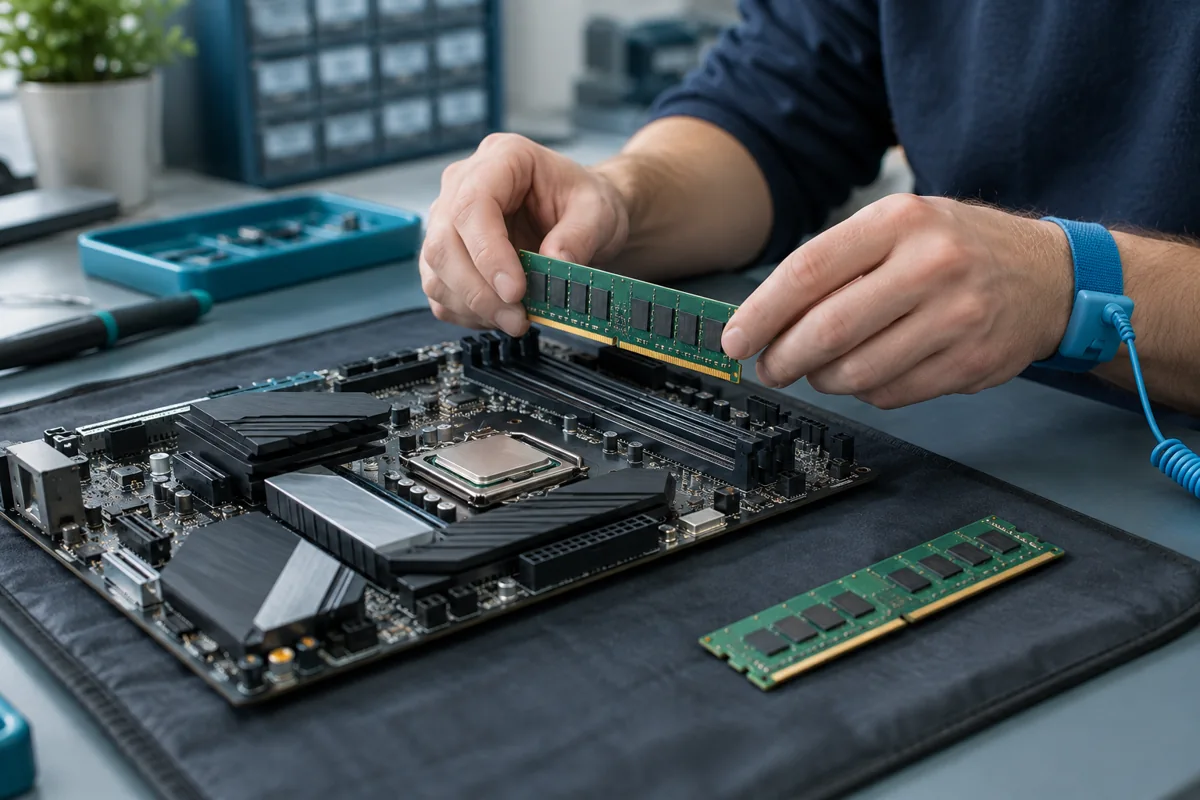
Do not move RAM in a running or power-connected computer. A laptop’s internal battery must also be considered, with disconnection procedures specific to its model. If inexperienced, avoid opening the device for experiments. Slot selection, clips and module orientation should follow the service instructions; forcing an incorrectly aligned module can damage the connector.
Compare the previous configuration
A technician can compare the original memory, test modules individually and review default settings. Overclocking profiles are not stable with every memory combination. A BIOS update should have a clear reason and reliable power. Random setting changes can make the original cause harder to identify and are not a guaranteed fix.
Booting is only the first check
Confirm that the operating system detects the full capacity and remains stable under load. Memory testing and normal workloads can reveal faults that a successful startup misses. Bring the old and new modules to the service centre if available. They help establish compatibility and choose a suitable configuration rather than simply the largest capacity.
Need help?
Describe the symptoms and share the model. We agree on the work and price before repair.