If you are choosing how much RAM your tasks need: How much RAM does a computer need
Compare the right memory figures
Open Task Manager and select Memory in the Performance section. Note the total capacity, current use and hardware reserved amount. System Information provides another view of installed and total physical memory. A small free balance while several applications are running is different from a missing memory module.
Take screenshots before changing anything. Record whether the difference appeared after a memory upgrade, a firmware change or simply when you first checked. A clear before-and-after comparison is more useful than repeated resets.
Understand integrated graphics memory
Integrated graphics can use system RAM. However, the maximum shared memory figure shown for graphics is not necessarily a permanent reservation. Seeing several gigabytes listed as shared GPU memory does not mean Windows has lost that entire amount.
Reservations vary with the device and its firmware. There is no single normal value for every laptop. Compare the figures with information for the exact model, and avoid treating screenshots from unrelated computers as a target to achieve.
Make checks that do not change the configuration
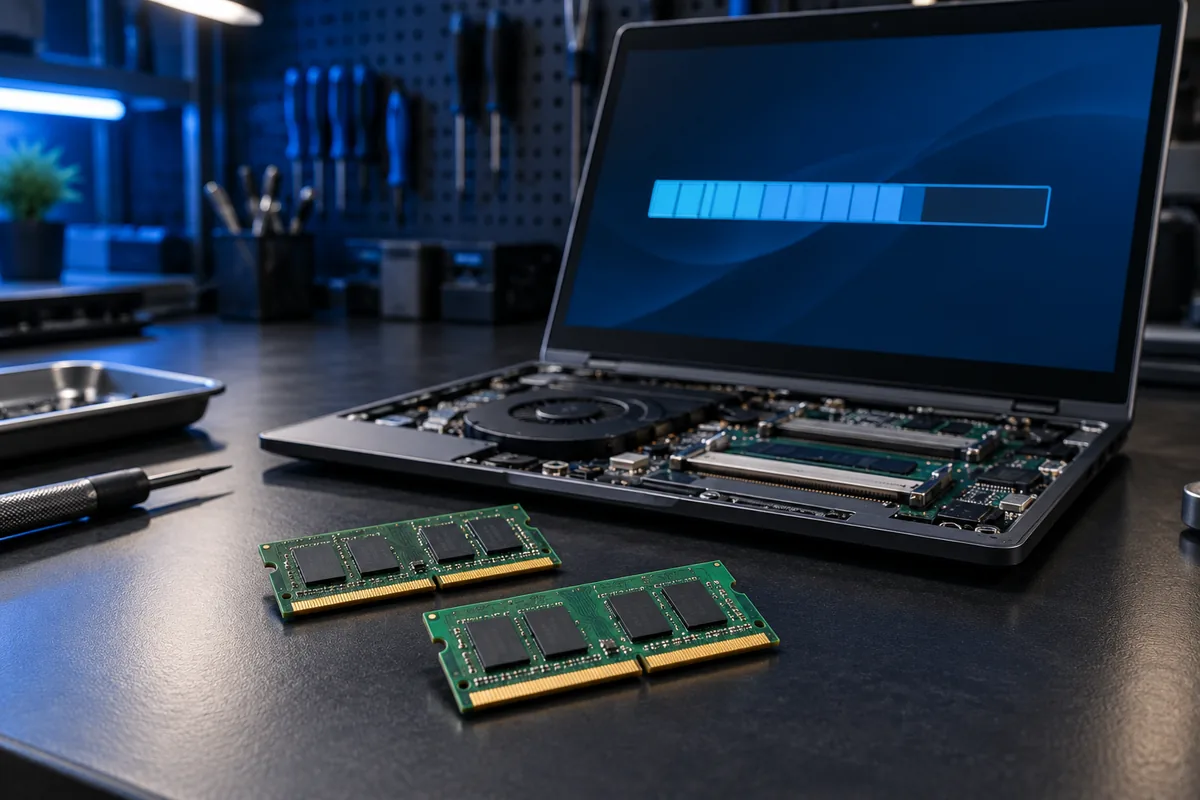
Restart the computer and see whether the figures remain consistent. After an upgrade, compare the memory part numbers, capacity and type with the computer or motherboard documentation. The firmware information screen may show recognised memory without requiring any changes to voltage or boot settings.
Avoid memory-cleaning utilities and random registry fixes. They cannot make an incompatible or incorrectly seated module physically detectable. If you are unsure about firmware menus, record what you can see and leave the settings unchanged.
Know when hardware testing is needed
If firmware detects only part of the expected capacity, or the computer starts freezing after an upgrade, the modules, slots and compatibility need checking. Never open a powered laptop; safely disconnecting an internal battery requires the procedure for that model.
Provide the technician with the exact model, module part numbers and your screenshots. This helps separate normal reservations from a module or motherboard issue before replacement parts are ordered. Back up important work if the system has become unstable.
Sources and further reading
Need help in Vilnius?
Describe the symptoms and tell us your computer model. We will assess the situation, suggest suitable work and agree on the price before starting.