Find what is using storage
Start with the macOS storage overview. Review documents, videos and downloads; large files are not necessarily unwanted. A large System Data category does not by itself indicate a fault. Menu names vary with the macOS version.
Make a copy before cleaning up
Create a separate backup before deletion. After moving photos and projects to an external drive, open several files to check them. A single copy on the same Mac drive is not a backup. Cloud synchronisation is also different from an independent archive: deletion can synchronise to other devices.
Avoid deleting system folders at random
Review your own large files and unused applications first. Do not remove Library or other system folders simply because they are large. Application caches and photo libraries serve different purposes. Check the Trash again before emptying it.
Can a larger SSD be installed?
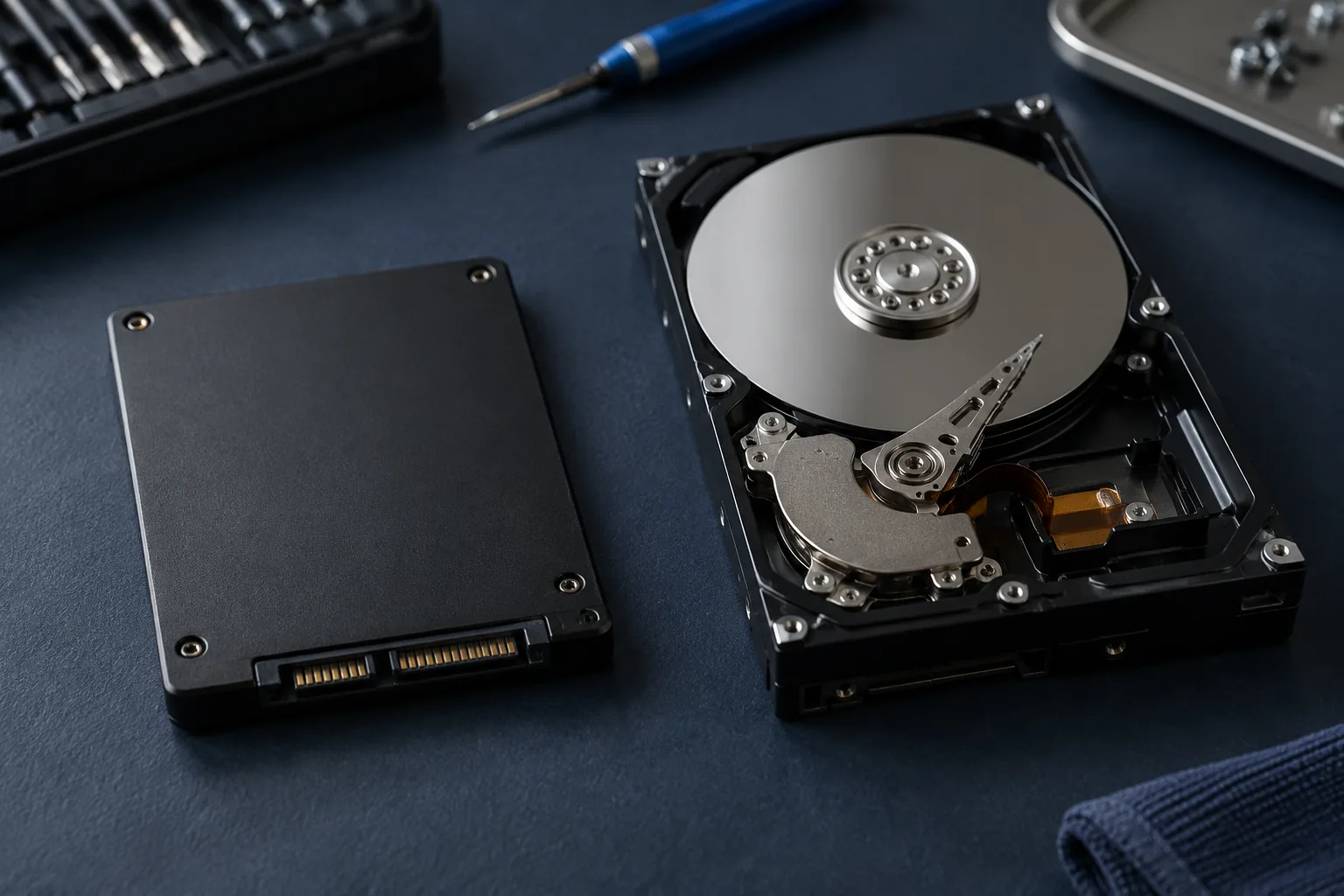
This depends on the exact model; many Macs do not have easily replaceable storage modules. Identify the model before buying parts. Kmvle, MB can help transfer personal files to suitable storage. If the drive reports errors, arrange assessment before cleanup; we do not recover data from physically damaged SSDs or HDDs.
Need help?
Describe the symptoms and share the model. We agree on the work and price before repair.