Describe the flicker
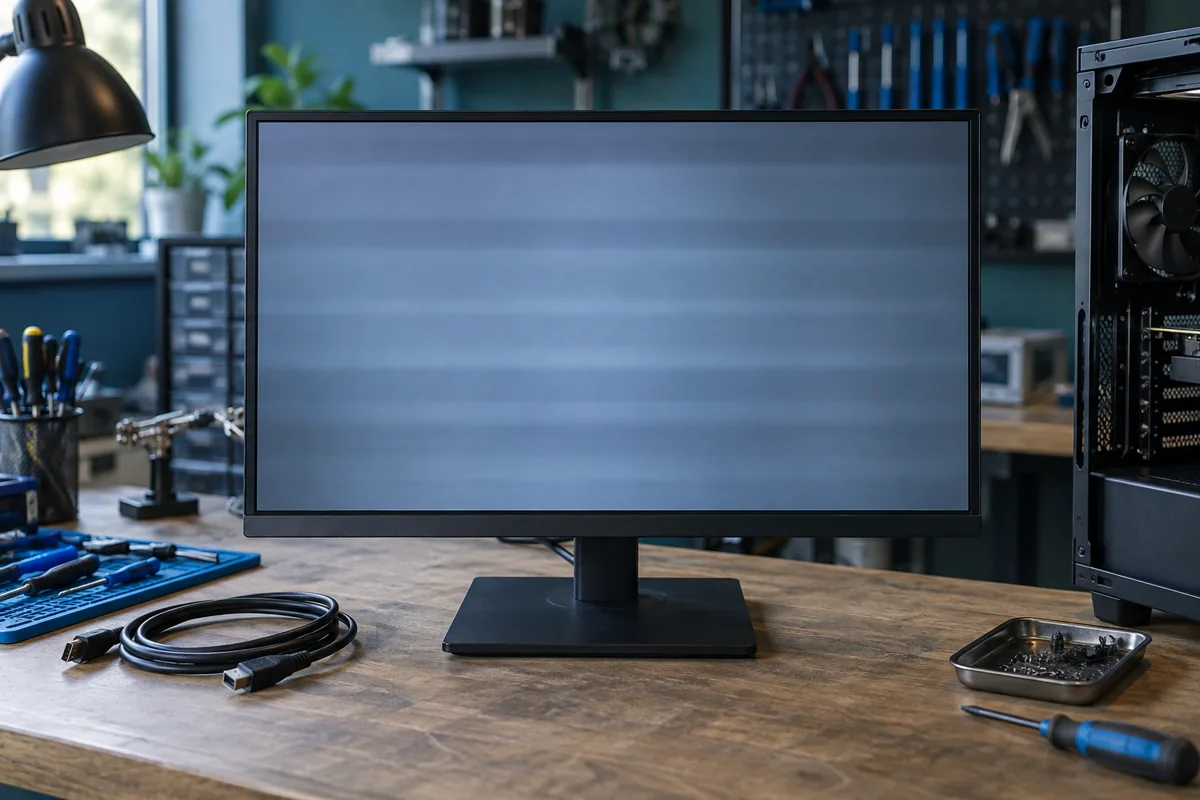
Distinguish changing brightness, a complete brief blackout and visible lines. Note whether it occurs only in a game, after warming up or at any time. A phone camera can record bands that are not visible to the eye, so a recording alone does not prove a fault. Compare the normal image with the monitor’s own on-screen menu.
Check the cable and signal path
With devices switched off, check secure connections and visible cable damage. If a suitable known working cable is available, change only that item and repeat the test. Bypass adapters or a dock where a direct connection is possible. Alter one condition at a time. Do not force a loose plug into an angle that temporarily restores the image.
Review display settings
Use a manufacturer-supported resolution and refresh rate. Problems appearing only at high refresh rates also call for checks of cable bandwidth and port compatibility. Compare another application and use graphics drivers from a trustworthy manufacturer source. Changing variable refresh operation can aid diagnosis, but settings do not resolve every flickering problem.
Signs that the monitor needs checking
A defect visible in the monitor’s own menu, or repeated with another source and suitable cable, makes monitor inspection more relevant. Power, backlighting, control electronics and the panel are possible areas, not a diagnosis from one symptom. Do not open the monitor: its internal power section can remain hazardous after mains power is disconnected.
Prepare useful details for service
Record the monitor model, connector, refresh rate and conditions that trigger the issue. Bring its external power adapter if applicable. Repair viability should be assessed before work; panel damage differs from a power supply fault. Parts availability and the final scope are confirmed after inspection rather than inferred from flickering alone.
Need help?
Describe the symptoms and share the model. We agree on the work and price before repair.