The connector shape does not define its features
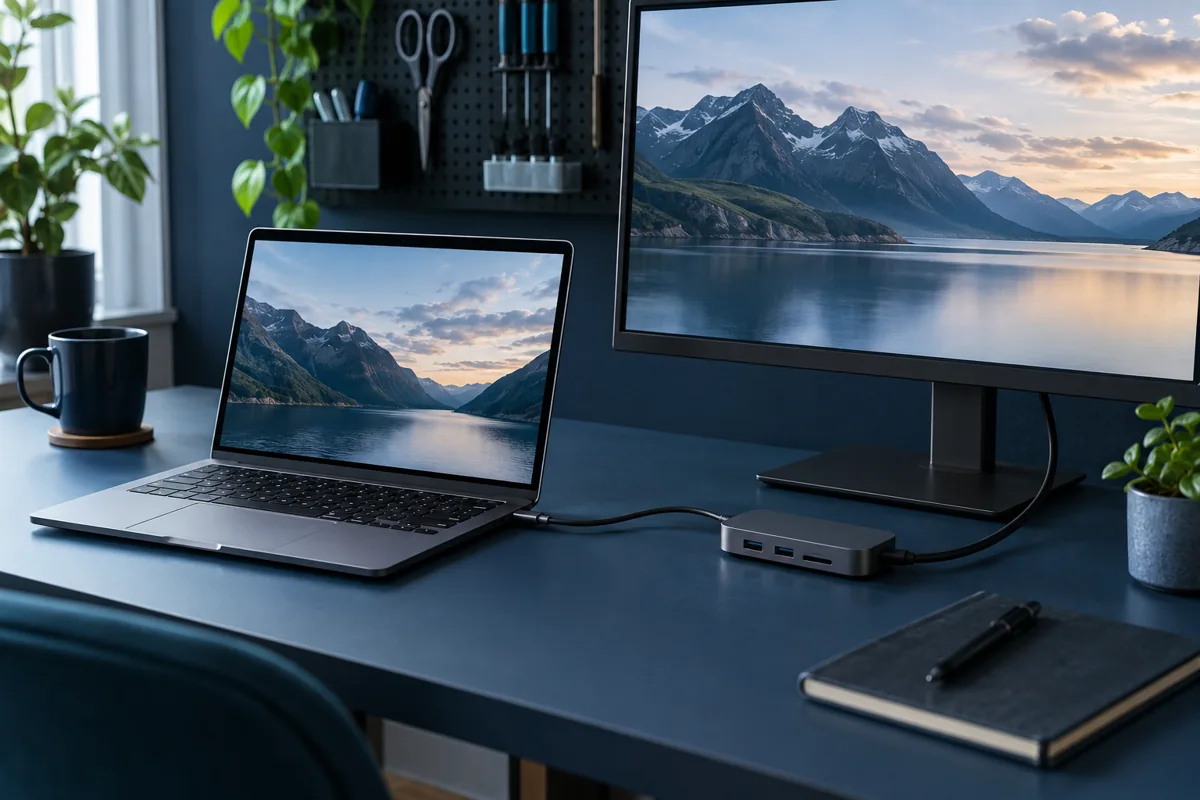
USB-C ports can differ in video support, charging capability and data speed. Compare specifications for the exact laptop and dock. Some docks need a particular video mode or additional software. A driver update cannot add a hardware function that the computer’s port does not support. Confirm the supported connection before buying replacement parts.
Start with a minimal setup
Disconnect unnecessary accessories and test the dock with one display or one mouse. Connect the same peripheral directly to the computer where possible. Working directly narrows the investigation to the dock, cable and compatibility, but does not by itself prove the dock is defective. Change one condition at a time and record the result.
Check power and the host cable
Use the specified dock power supply and a cable that supports the required features. A phone charging cable may not support video. Input wattage and the power actually available to the laptop can differ because the dock consumes some power itself. Slow charging under load therefore does not necessarily indicate a worn or faulty battery.
One display works but two do not
Multiple display support depends on the computer, dock, operating system, resolution and refresh rate. Reducing resolution or refresh rate can help a test but is not a diagnosis. Test each monitor separately first. The manufacturer’s maximum display count applies under particular conditions, so the same dock may behave differently with another computer.
Software checks and service information
Obtain drivers and dock firmware from the manufacturer for the exact model. Update only with stable power and according to its instructions. Bring the laptop, dock, power supply and host cable, and provide the monitor model. Connection and configuration can be checked; physical repair of the dock itself requires a separate assessment.
Need help?
Describe the symptoms and share the model. We agree on the work and price before repair.