If the button feels unchanged but the computer shows no response: Why a computer does not turn on
Describe how the button movement changed
Is the button sunken, loose, tilted or failing to return to its usual position? Inspect it from outside and photograph the visible change. Record any recent drop, spill or disassembly. This helps separate a mechanical symptom from a general startup problem.
Note whether an ordinary press produces even a brief response from an indicator, fan or display. One clear observation is more useful than repeated attempts with increasing force. Do not repeat a test that already encounters mechanical resistance.
If the computer starts only sometimes
If you can still start the computer, save important files to a separate location first. Do not postpone the copy just because another press worked. An intermittent response alone does not establish whether the switch, its connection or another part of the circuit is responsible.
Tell the technician whether the feel of the button changed or whether its movement remained normal while the response became inconsistent. These are different observations. Record whether the behaviour appeared suddenly or gradually required more attempts.
Do not force or bypass the switch
Do not insert a screwdriver, pin or other metal object into the gap. Do not pour in cleaner or bridge contacts with wire to start the computer. These actions are not appropriate external checks and may complicate the repair.
Stop trying if you see liquid residue, notice a burnt smell or find a damaged power cable. Do not dismantle the charger or power supply. Follow a manufacturer power-reset procedure only when it clearly applies to your exact model and its requirements are understood.
Does only the button need replacing?
A photograph alone cannot reliably establish the replacement part or scope of work. The exact computer model, button construction and damage need checking. Before ordering a part, the assessment determines whether an individual element or a related assembly needs attention.
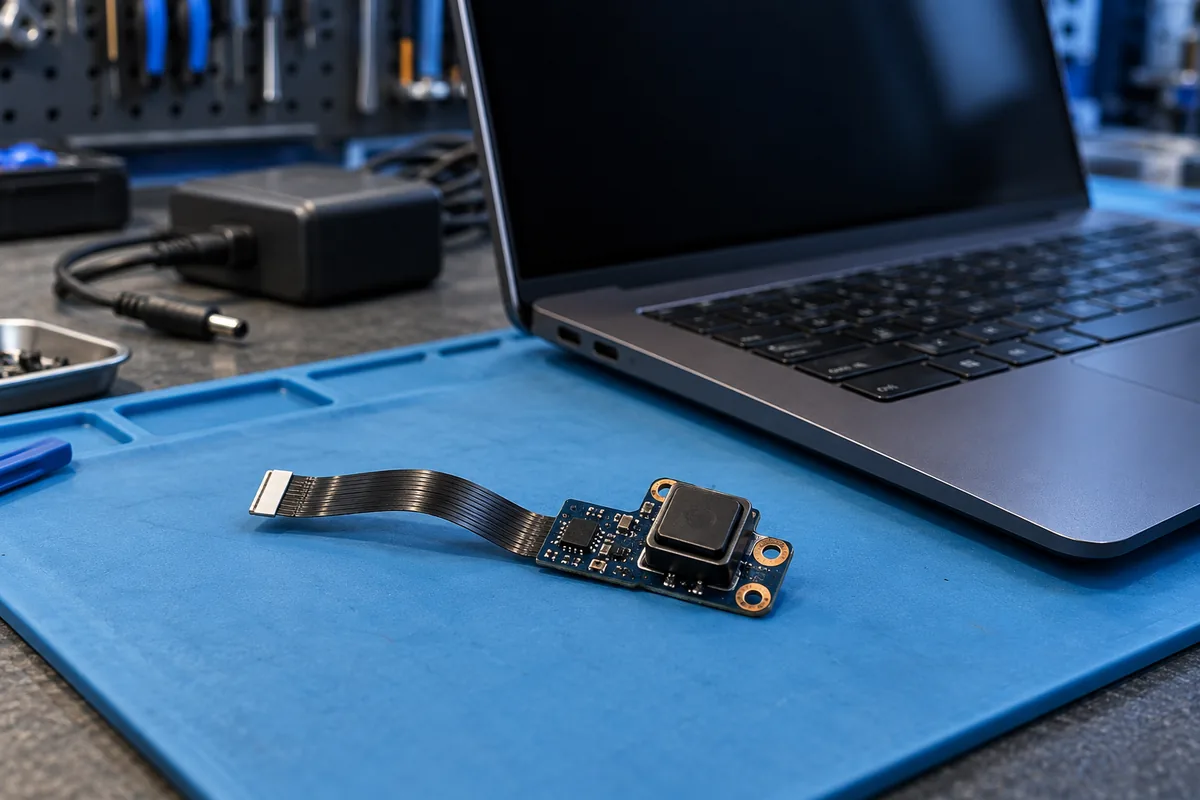
If the button sits beside the keyboard or is associated with a fingerprint reader, mention that when handing over the device. A similar appearance is not evidence of compatibility. Do not order a replacement solely because a picture shows the same general shape.
Prepare useful information for assessment
Bring the computer and its usual power adapter. Provide the model, a photograph of the button, when the symptoms began and details of previous repairs. If the computer sometimes starts, explain the circumstances in which you observed it.
The assessment needs to establish whether mechanical button damage explains the symptom and whether an additional power fault exists. We agree the work and price after assessment and before starting the repair.
Sources and further reading
Need help in Vilnius?
Describe the symptoms and tell us your computer model. We will assess the situation, suggest suitable work and agree on the price before starting.