Matching folders are not always independent protection
Synchronisation keeps files consistent across devices or cloud storage. Changes and deletions can propagate to the other locations. A backup aims to retain a separately recoverable version when the original is lost or damaged. Cloud recycle bins and version history may help, but conditions depend on the provider and plan rather than offering unlimited protection.
List the files that matter
Check Desktop, Downloads, photo libraries, videos and project folders as well as Documents. Email archives and specialist applications may store data elsewhere. Copying an application folder does not guarantee the software will run on another computer. Licences, accounts and exported settings are separate requirements worth discussing before repair or migration begins.
Keep a copy separate
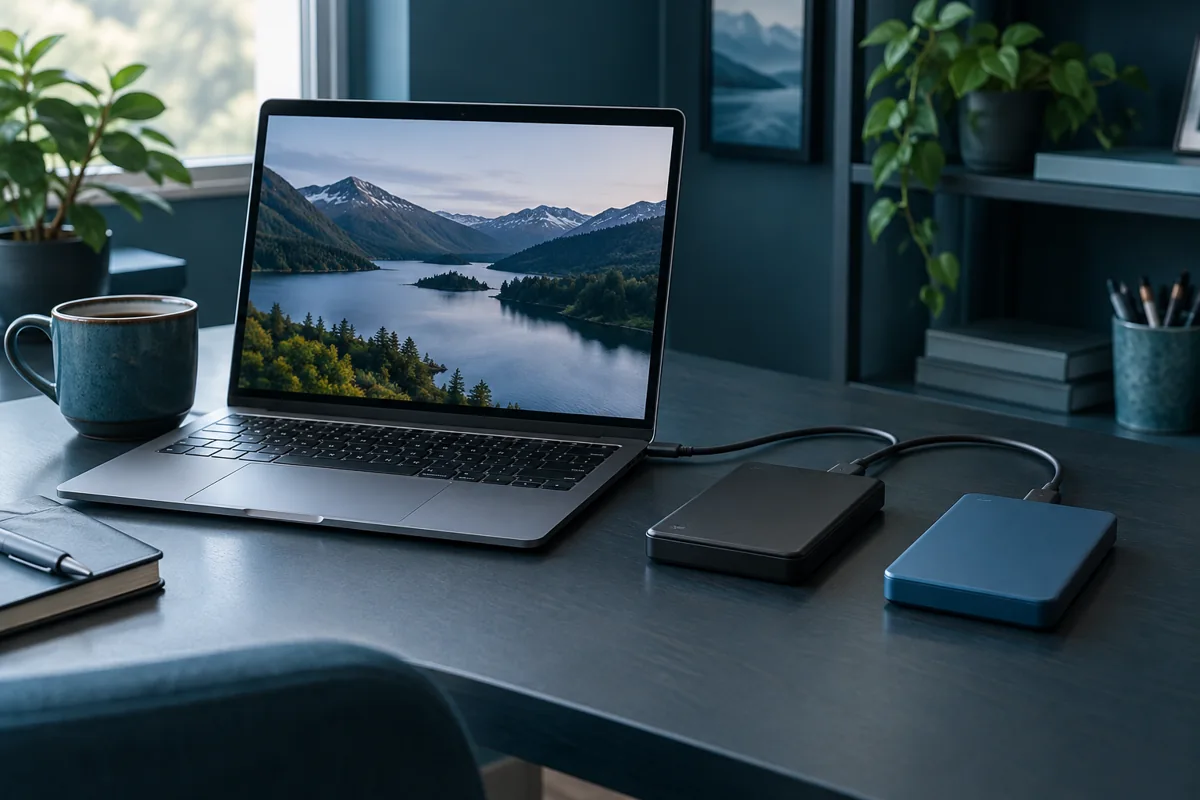
Important files benefit from an additional copy on separate storage or in a different location. A permanently connected drive can also be affected by accidental deletion or malicious software. Safely disconnect it after copying finishes. If you encrypt the backup, keep recovery information somewhere that will not be lost with the same computer.
Test recovery, not just completion
Open several documents, photos and larger files directly from the copy. Confirm that necessary folders are present and are not merely links to online files. Cloud-only content may need downloading before it can be copied locally. On a Mac, Time Machine supports automatic backups; check the last successful backup date and verify that files can be restored.
Before handing over the computer
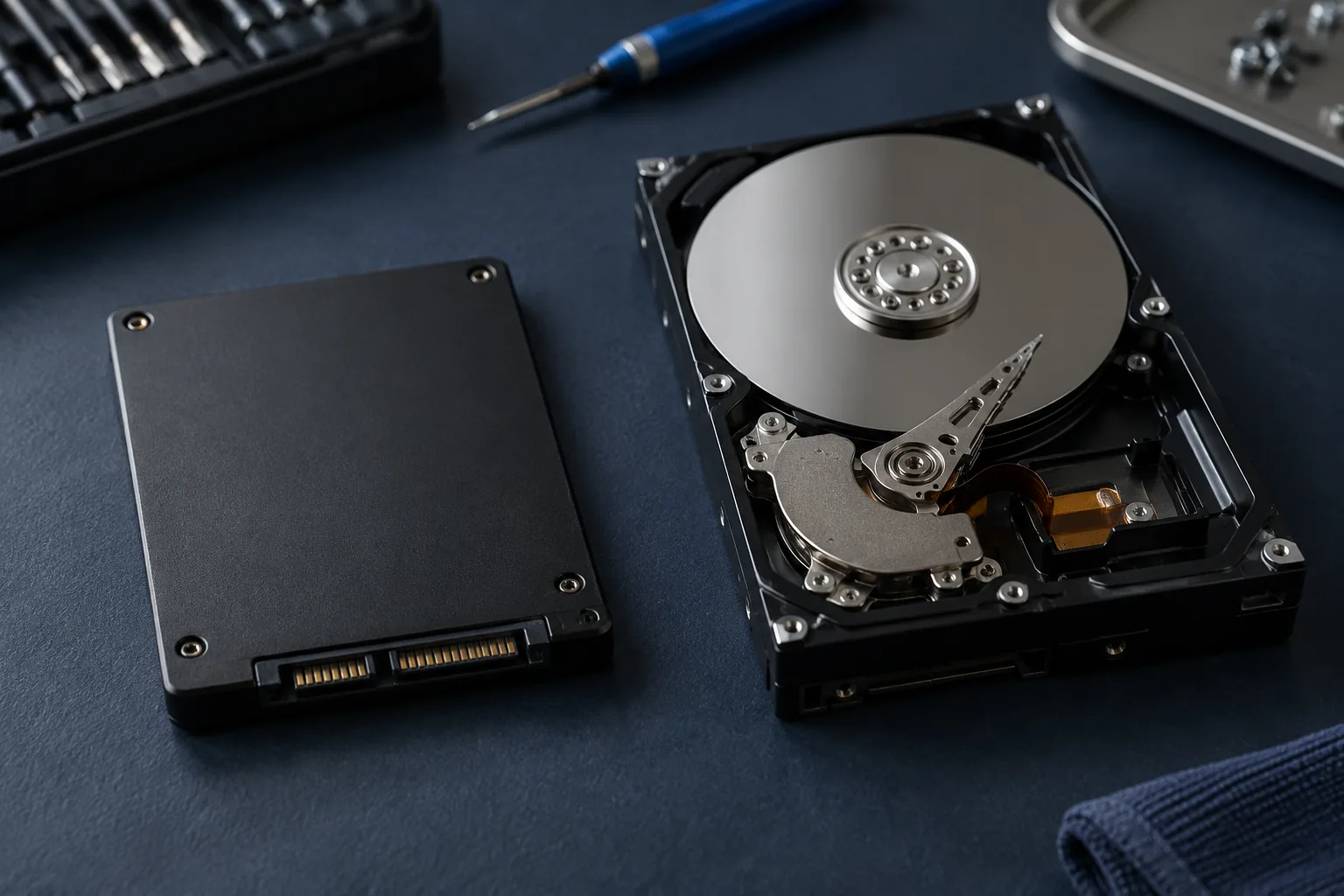
Explain which files matter and where they are stored. Agree whether data transfer is needed or repair should proceed without changing the system. A one-time transfer is not an ongoing backup arrangement. If the computer no longer starts, preservation depends on the storage condition. We do not provide recovery from physically failed drives.
Need help?
Describe the symptoms and share the model. We agree on the work and price before repair.