If the Mac does not detect the connected drive at all: Mac does not recognise an external drive: protect your files
When exFAT is a practical choice
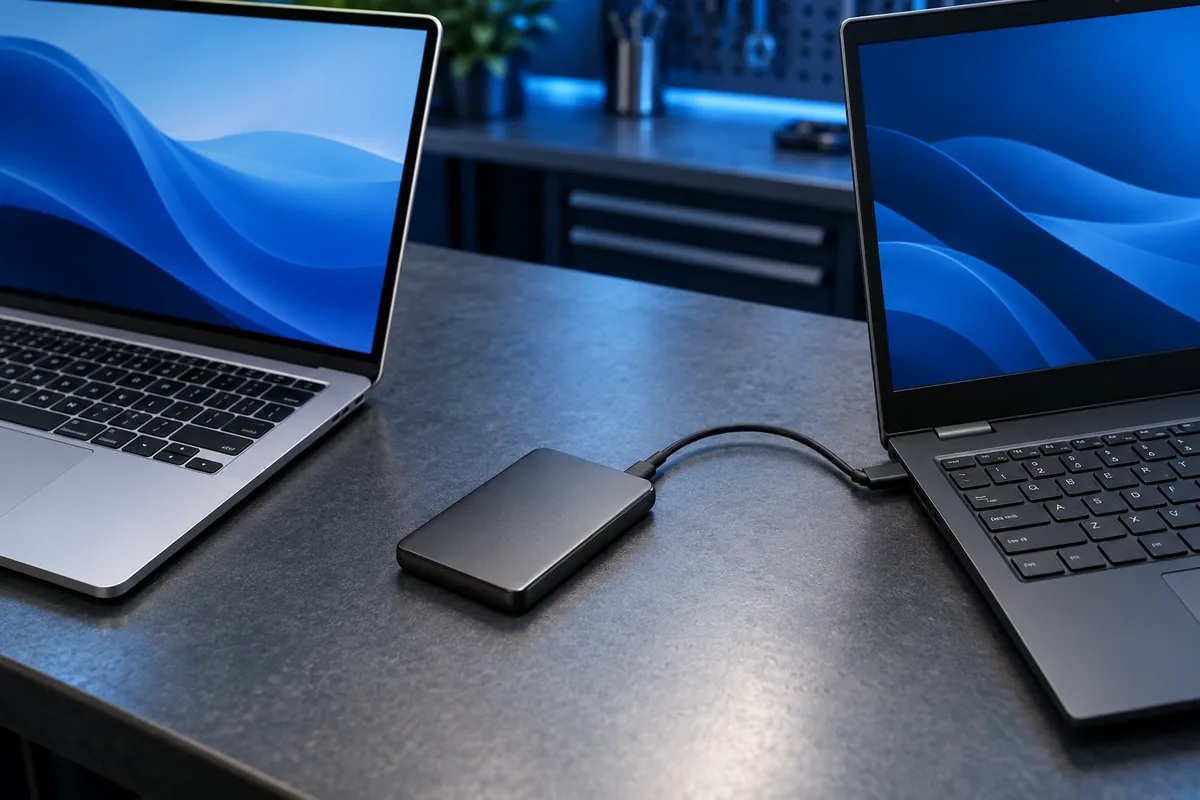
exFAT suits ordinary file exchange between Windows and macOS when both computers need to write to the drive. It also supports files beyond the roughly 4 GiB single-file limit associated with FAT32, which matters for video recordings and large archives.
Check any other equipment that will use the disk. A television, vehicle system or older device may require a different format. Compatibility with two computers does not automatically establish compatibility with every device you own.
When keeping NTFS makes sense
For a drive used mainly with Windows, NTFS can be the more suitable choice. It provides features such as access permissions and metadata journaling that exFAT lacks. No file system, however, replaces a separate backup.
A standard macOS setup may read NTFS without offering native write access. Before buying additional software, decide whether you actually need NTFS features or whether a separate shared transfer drive would make the workflow simpler.
Make a verified copy before changing formats
Check the file system in the drive properties in Windows or its information window on the Mac. If the disk contains important files, copy them elsewhere and open several essential documents from that copy. Seeing folder names alone does not confirm a successful transfer.
Formatting erases the contents of the selected volume. It is not a harmless compatibility switch. If there is nowhere to preserve the files, arrange a separate copy before preparing the drive. Do not rely on an unverified conversion promise to protect your only copy.
Test the actual workflow in both directions
Try a small document and one large file on the prepared drive: write them, eject it safely, connect it to the other computer and open the copies. Repeat in the opposite direction if that is part of your regular workflow. Keep the originals until you have checked the result.
If copying stops, the drive disappears or files become inaccessible, changing the format is not a diagnosis. Check the cable, connection, free space and storage health as well. Record the exact error before repeating operations that write to the disk.
Sources and further reading
Need help in Vilnius?
Describe the symptoms and tell us your computer model. We will assess the situation, suggest suitable work and agree on the price before starting.