Do not erase a drive containing needed files
An unreadable disk message is not an instruction to format it. If the drive holds the only copy of important files, establish what has happened first. Avoid random repair commands and writing new data to a suspect drive. Note whether it previously worked on a Mac, Windows PC or another device, and record the exact message.
Test a direct connection
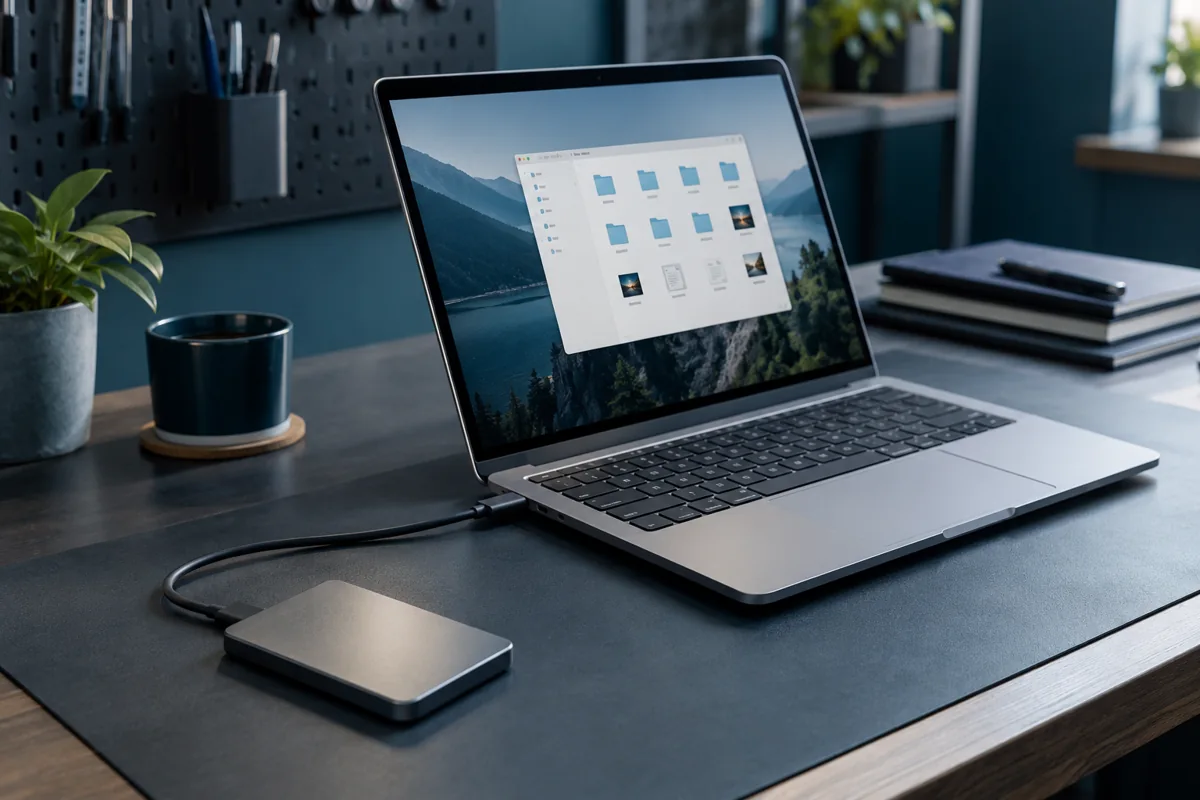
Connect without a hub or dock where possible. Use a data-capable cable and the correct external power adapter when required. A comparison with another suitable cable or port may help, but do not endlessly reconnect an unstable drive. Repeated clicking, a recent fall or overheating is a reason to stop rather than continue testing.
Finder and Disk Utility show different information
Finder settings can hide external drives even when the device is detected. Disk Utility can show whether the physical device and its volumes are present. Looking does not require erasing, partitioning or running repair operations. A detected device with a volume that will not mount needs further assessment of format, filesystem and access conditions.
Consider format and encryption
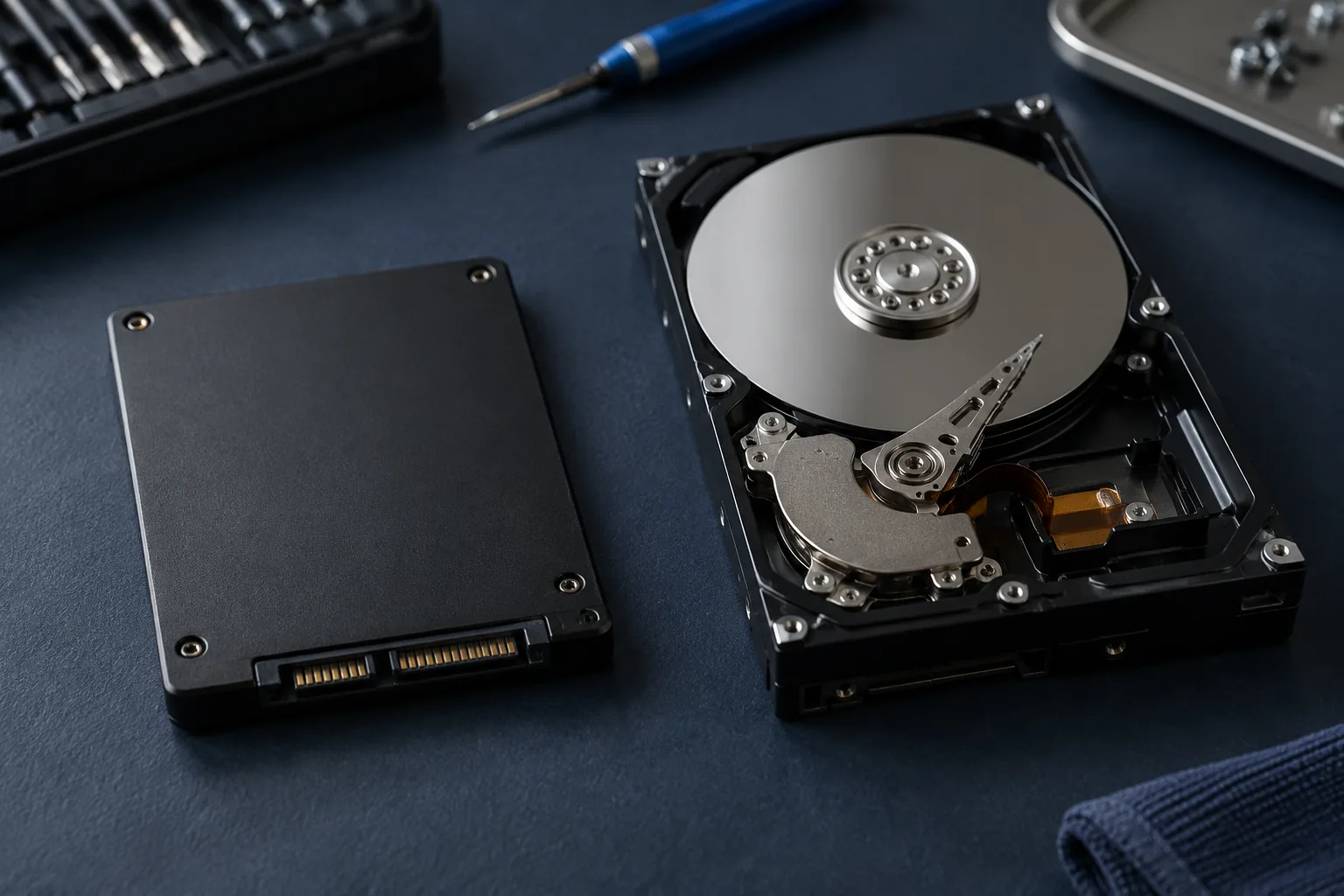
Compatibility depends on the filesystem and available software. Some formats may be readable but not writable, while encrypted storage requires the correct password or key. Replacing a cable cannot solve those limitations. Change a drive’s format only after safely preserving required files elsewhere, because formatting can remove access to existing data.
What our service can help with
We can check connections and transfer accessible files from working storage. We do not recover data from physically damaged or failed SSDs and HDDs. Important files on a failed drive require assessment by a specialist recovery centre. Provide the model, previous operating system and whether another copy exists so that a safe next step can be chosen.
Need help?
Describe the symptoms and share the model. We agree on the work and price before repair.