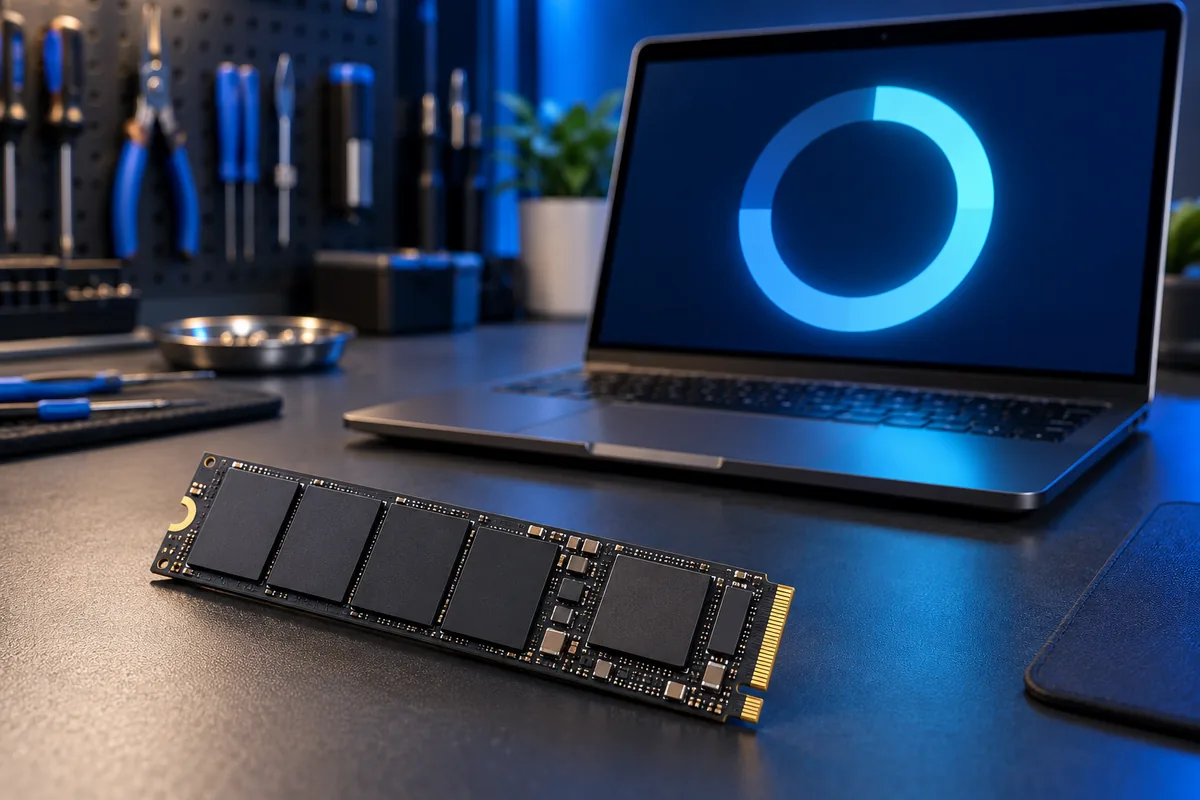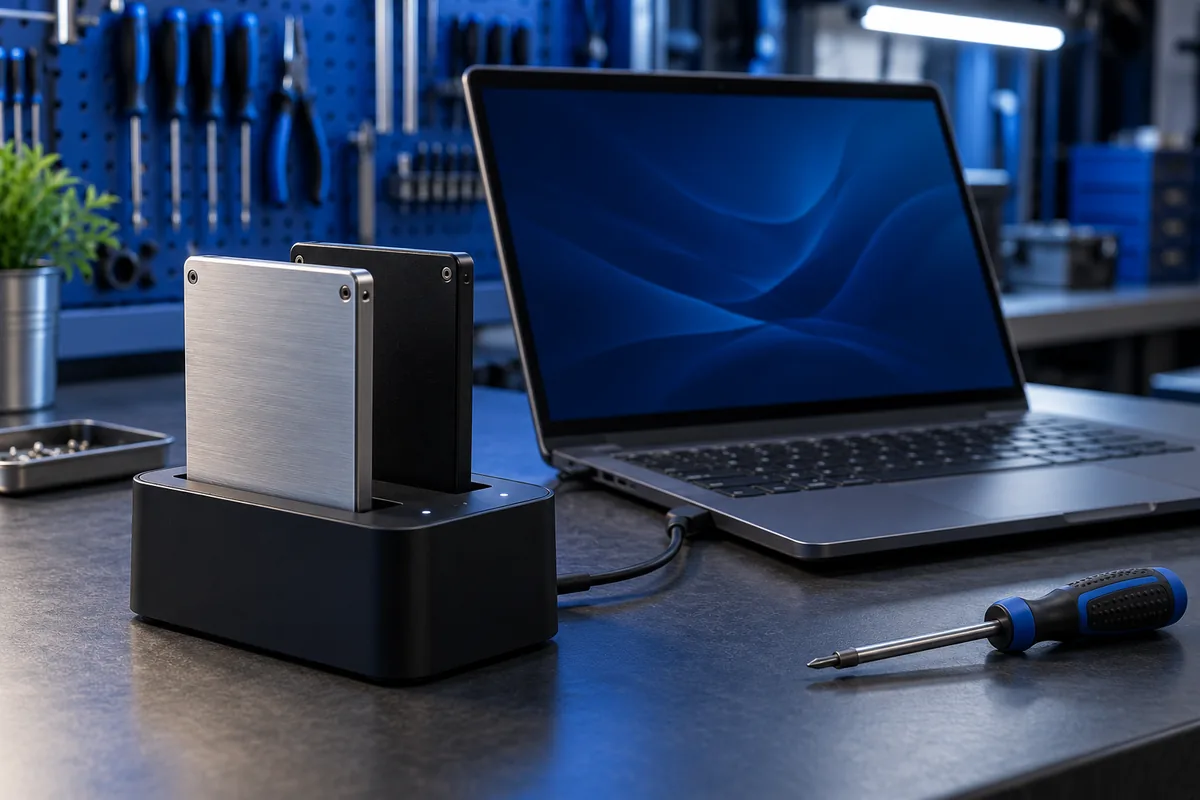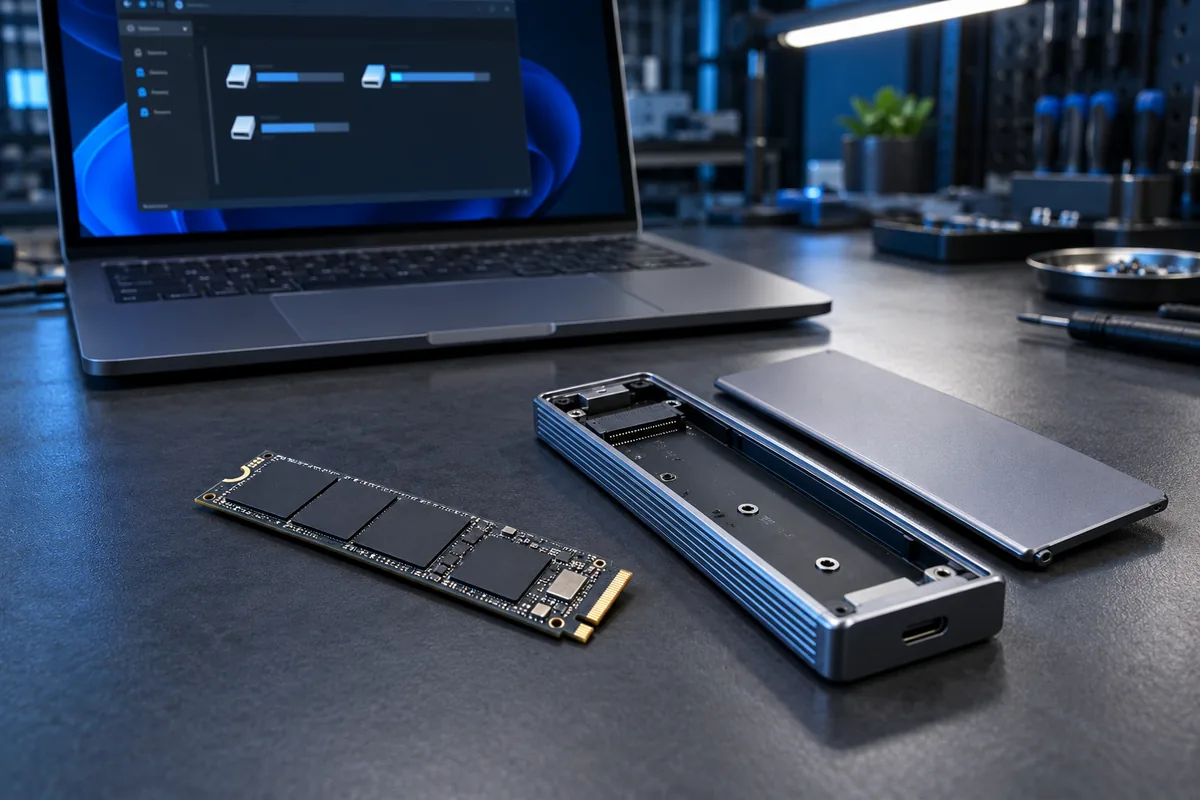
If the SSD is absent even from BIOS, not just File Explorer: SSD not showing in BIOS: what to check before replacing it
Identify the physical drive first
Open Disk Management and compare the model, capacity and displayed partitions. When several similar drives are connected, do not rely only on a label such as Disk 1. The number does not prove that this is the new SSD. Record the status or take a screenshot of the full window.
If the drive history is unknown, assume it may contain data. Do not accept an automatic initialisation prompt just because it appears after connecting the device. An external adapter does not make a previously used disk empty.
Prepare only a confirmed empty new SSD
Once you have positively identified a new disk with no existing data, initialisation can be appropriate. GPT is commonly used for a modern Windows data disk. A simple volume is then created in the unallocated space, with a drive letter and a suitable file system.
This prepares storage for new files; it is not a recovery procedure. Check the selected disk and capacity before every confirmation, particularly when a backup drive or another important storage device is also connected.
Check whether only a drive letter is missing
An existing healthy data volume may simply lack a drive letter. Assigning a letter is different from formatting. Do not change the Windows system drive letter or assign letters to EFI and recovery partitions.
Stop if the option is unavailable, the volume is shown as RAW, or a previously working drive suddenly appears unallocated. Creating a new volume is not a safe way to recover its previous contents. Those symptoms need separate investigation before any writing takes place.
Verify the result while keeping originals
After preparing the new disk, find it in File Explorer and copy a small test file to it. Open that copy before planning a larger transfer. Keep the originals on another working device. If the SSD disconnects or copying fails, repeated formatting is not a sensible first response.
For diagnosis, provide the SSD model, connection method and a Disk Management screenshot. If it holds the only copy of important documents, avoid further writes and explain that preserving the files is the priority.
Sources and further reading
Need help in Vilnius?
Describe the symptoms and tell us your computer model. We will assess the situation, suggest suitable work and agree on the price before starting.