If the problem is a full backup drive: Time Machine disk running out of space: protecting your backups
Protect what you have now
If the file still exists but you need an older version, copy the current one into a separate, clearly named folder. Close the application editing it. Note where the document was stored and approximately when its contents were last correct.
Check the Bin as well: the file may be easier to recover there. For a cloud document, consider the service’s version history separately. Do not choose disk erasure, formatting or a complete system restore just to recover one spreadsheet or photograph.
Find the right item in the backup history
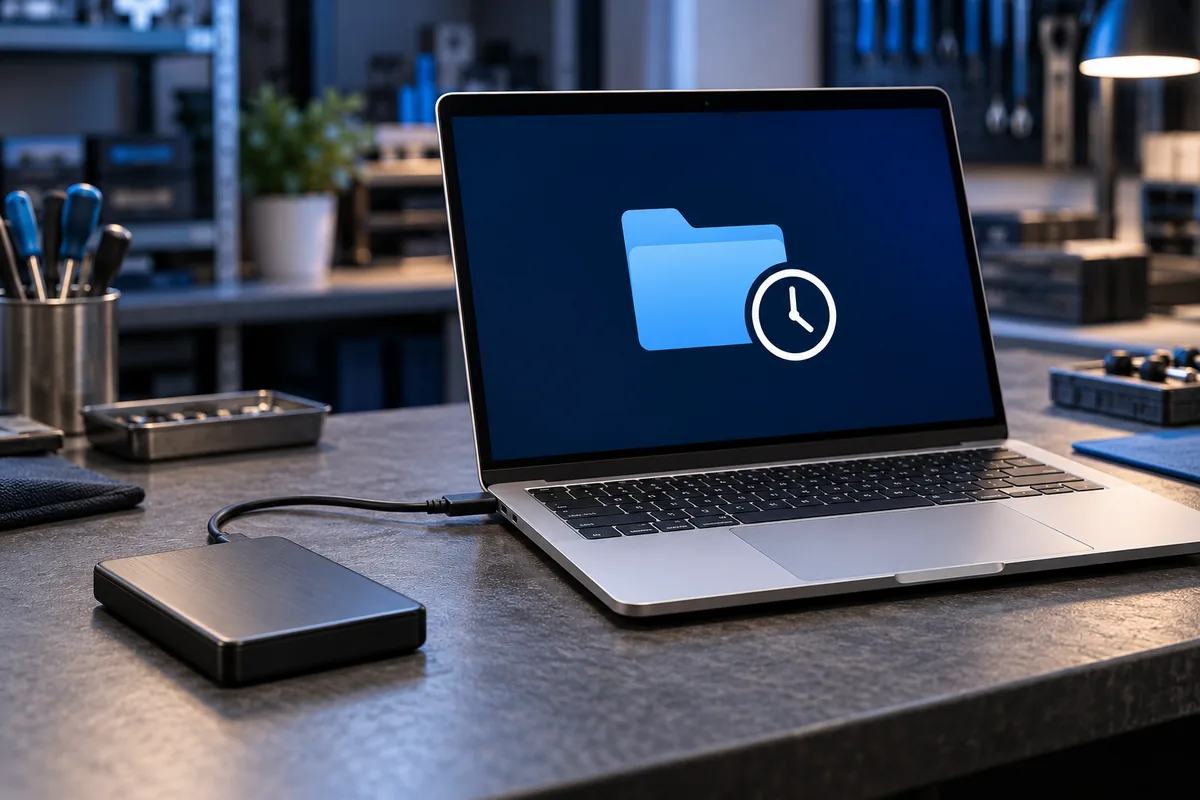
Connect your Time Machine disk or the network storage you normally use. In Finder, open the folder that contained the document and launch Time Machine. Choose a backup from before the accidental change or deletion.
Start with the known folder and filename. If several candidates appear, compare dates, sizes and content where preview is available. The oldest copy is not automatically right. Let the backup finish loading instead of disconnecting it.
Restore the selected file and inspect it
Select the required file and use Restore. Items return to their original location. If prompted about an existing item with the same name, do not replace it automatically: keep both where that option is offered, or first preserve a separate copy of the current version.
Open the recovered document in an appropriate application. Check the required pages, tables, pictures or recent entries. Clearly identify your working version to avoid confusing it with the current copy saved beforehand.
Understand what a backup check establishes
A test restore confirms one readable item, not the health of the entire archive. For network Time Machine backups, Apple also describes Verify Backups, accessed by holding Option in the Time Machine menu. Do not assume the command is available for every USB backup disk.
If the disk disconnects, repeatedly reports read errors, or contains the only important copy, stop before erasing it or experimenting with repairs. Record the storage type, backup date, file location and error for diagnosis. Keep passwords private.
Sources and further reading
Need help in Vilnius?
Describe the symptoms and tell us your computer model. We will assess the situation, suggest suitable work and agree on the price before starting.