If you use a Windows computer rather than a MacBook with macOS: No sound in Windows: settings and initial checks
Temporarily remove other sound outputs
Disconnect wired headphones, external displays and USB audio equipment, and temporarily disconnect Bluetooth headphones. The sound may be directed to something other than the laptop. A simple connection setup makes the result easier to interpret.
Open the system sound settings, select the built-in speakers under Output and use a moderate volume. Check that sound is not muted. Menu names and layout vary across macOS versions, so identify the purpose of each control rather than relying on one screenshot.
Compare applications and recordings
Play a familiar local audio or video file, then another recording in a different application. Check the application’s own volume and whether a browser tab is muted. Video-call software can also have its own output selection.
If one application produces sound, the speakers are reproducing audio at that moment. Investigate the silent application before ordering parts. Note whether the problem started after connecting a display or headphones, or after installing software that handles audio.
Check both channels at an ordinary volume
Check that the balance has not been moved all the way to one side. Listen to the same recording at a moderate level. If one side crackles or drops out only at a particular volume, record that observation; prolonged maximum-volume tests are unnecessary.
Save your work and restart the Mac with the accessories disconnected. Recheck the output list afterwards. Avoid random terminal commands, cleaning utilities or unknown drivers. A clear before-and-after comparison is more useful.
Recognise when hardware diagnosis is appropriate
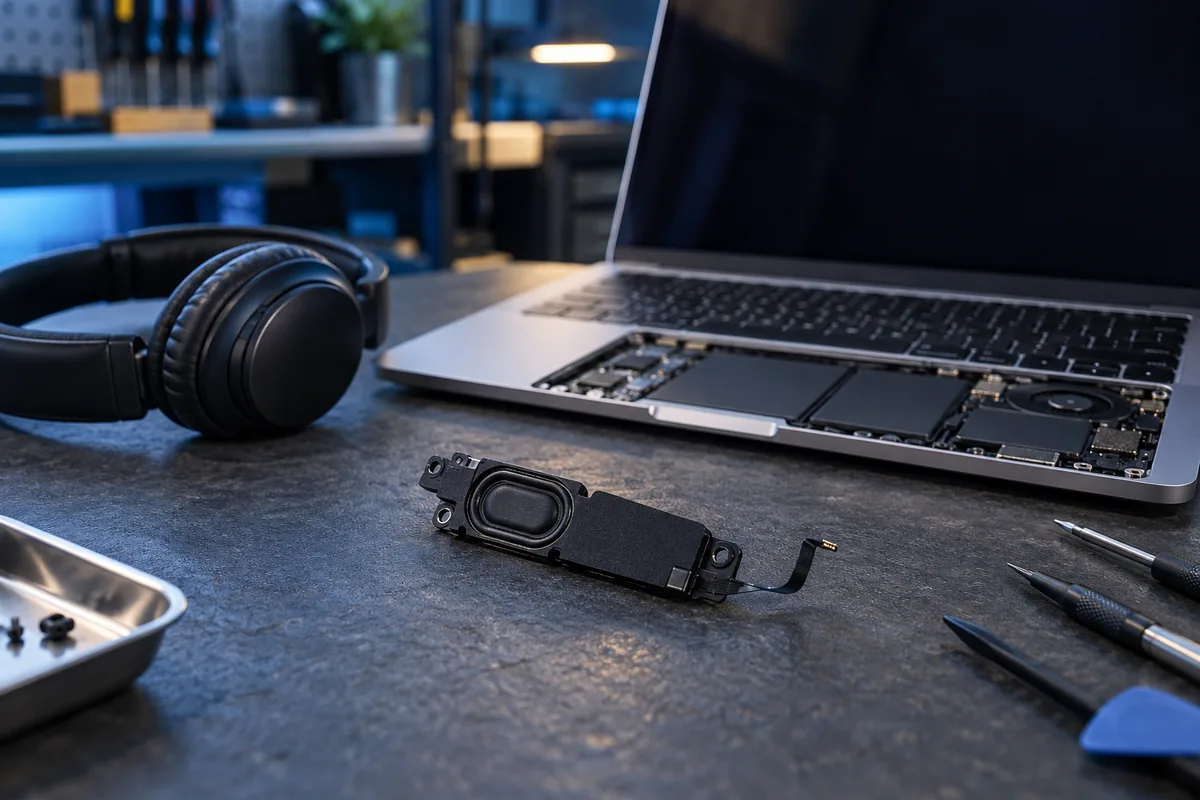
If the built-in speakers do not appear in the list, or remain silent in several applications after a restart, arrange further checks. The speakers themselves are not the only possible cause, so do not select a replacement part from the symptom alone. After a spill, do not try to repair ports with heat or liquids.
Provide the exact Mac model, macOS version, when the fault began, and whether wired and Bluetooth headphones work. Bring any accessory that reliably triggers the issue. Make a backup of important files before repair and retain the information needed to reproduce the problem.
Sources and further reading
Need help in Vilnius?
Describe the symptoms and tell us your computer model. We will assess the situation, suggest suitable work and agree on the price before starting.