Find out where the microphone fails
Make a short recording with the system recorder. If it plays back, the physical microphone works at least at that moment; investigate the application or permissions. If it fails everywhere, check the system input. Record whether it is built-in, USB, Bluetooth or an analogue headset.
Mute switches and the selected device
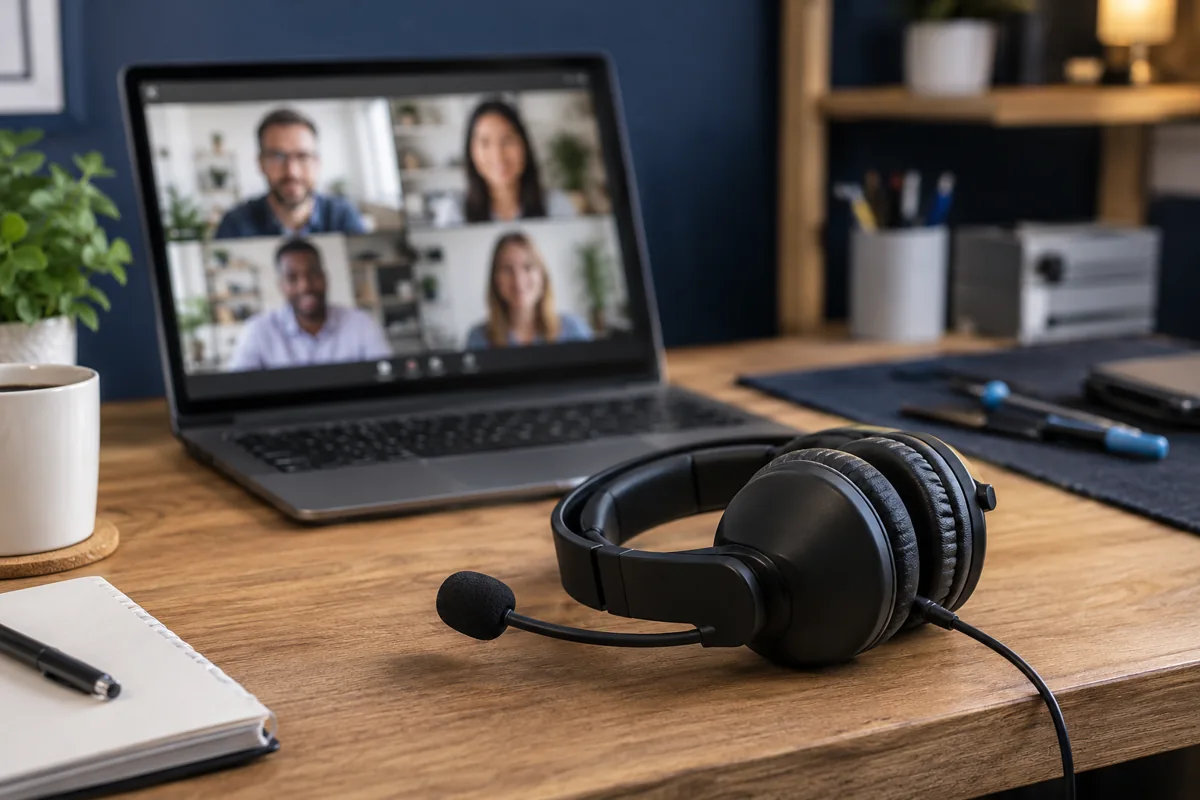
Check the headset’s physical mute switch, keyboard mute and the calling app’s button. Connecting a dock or different headset can change the selected input. Choose the intended microphone in both system and app settings and watch the level indicator. Increasing volume cannot help if another device is selected.
System and browser permissions
Operating-system privacy settings, website permissions or organisational policy can restrict access. Check the particular browser and site used for the call. Do not unnecessarily grant every application microphone access. Rejoining the call may be necessary after a permission change. Do not bypass administrator restrictions on work computers.
Connector and headset type
Some headsets combine audio and microphone in one plug; others use separate plugs. An unsuitable adapter can carry playback but not the microphone. USB and Bluetooth follow different paths, so comparing them narrows the problem. If movement interrupts audio, do not keep the cable pressed into position: inspect the cable or socket.
When is repair needed?
If the internal microphone fails in several applications but an external one works, check the internal module and connection. If no audio input works, assess drivers and the system too. Explain whether the issue followed screen replacement, a fall or an update. One caller reporting quiet audio does not identify a failed component.
Quick checks
| Situation | What to check | What it means |
|---|---|---|
| Local recording works | Check the calling application | The physical microphone is working at that moment. |
| Only browser calls fail | Check site permissions | Permissions can differ for each website. |
| Audio breaks when the plug moves | Check cable and socket | Volume settings cannot repair a contact. |
Need help?
Describe the symptoms and share the model. We agree on the work and price before repair.