Identify exactly what has stopped working
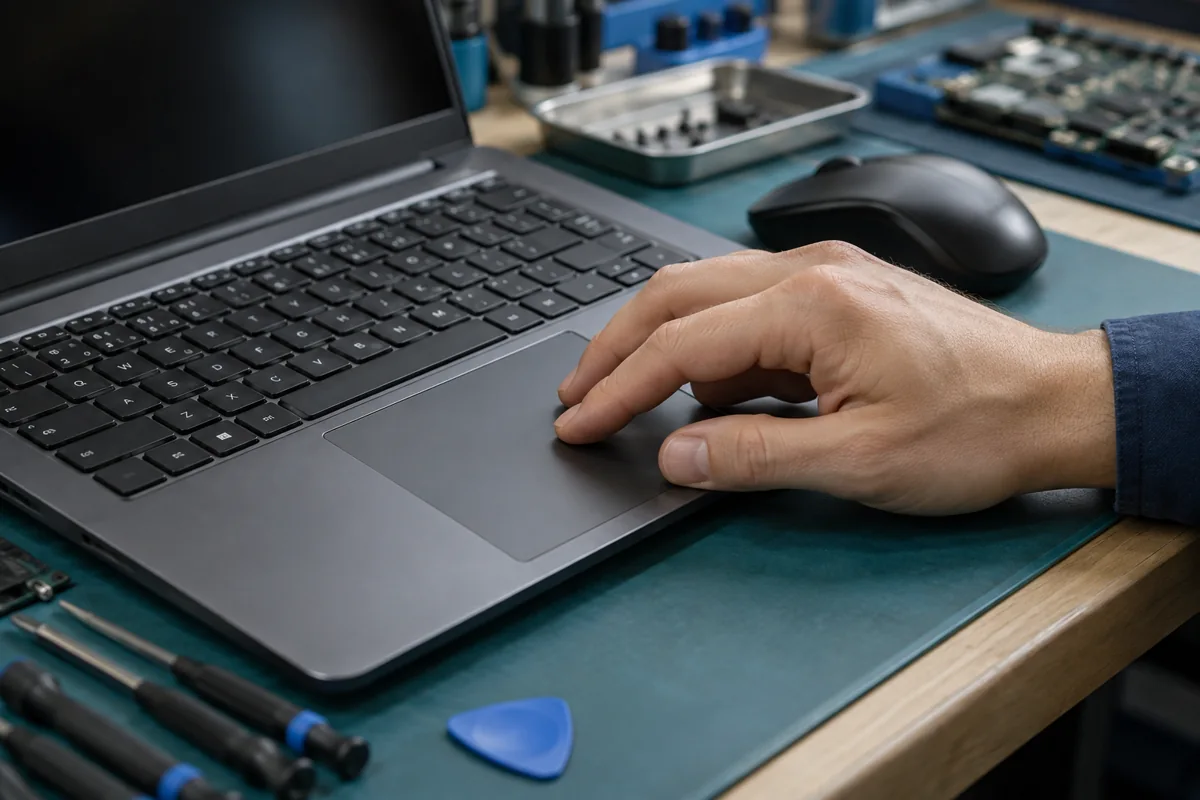
Separate a frozen pointer from a failed click or missing two-finger scrolling. Gestures often depend on settings, whereas a completely frozen laptop may have a different fault. Connect an external mouse to check whether the system responds. If the keyboard also fails to respond, save work if possible and investigate the system freeze before assuming the touchpad needs replacing.
Check the switch and surface
Some laptops disable the touchpad through a key combination or a dedicated area on the pad. Consult the instructions for the exact model. Check whether the touchpad is enabled in system settings and whether connecting a mouse disables it. Clean only with the device switched off and a soft cloth; never spray liquid directly onto it. Dry fingers and a clean surface help eliminate simple tracking problems.
Problems following an update
Note when the issue began and check the laptop manufacturer’s drivers for the precise model. Unofficial driver bundles may install unsuitable software. Keep an external mouse available and back up important files before changing drivers. If only one application behaves incorrectly, compare it with another application before changing system-wide settings or considering a reinstall.
A raised touchpad needs physical inspection
A lifted pad, difficult clicking or separated casing may indicate a swollen battery. Switch off, disconnect the charger and do not force the touchpad down. Trouble after a liquid spill can also indicate internal damage. Continued use may worsen the fault. These symptoms call for inspection rather than repeated driver changes.
What a service check covers
Diagnosis can examine settings, the driver, the touchpad connection and the assembly itself. A non-moving pointer does not automatically require replacement of the entire palmrest. The correct repair depends on the construction and findings. Tell the technician whether behaviour changes on charger power and whether the laptop has suffered a knock, liquid exposure or recent disassembly.
Need help?
Describe the symptoms and share the model. We agree on the work and price before repair.