Check the last successful backup
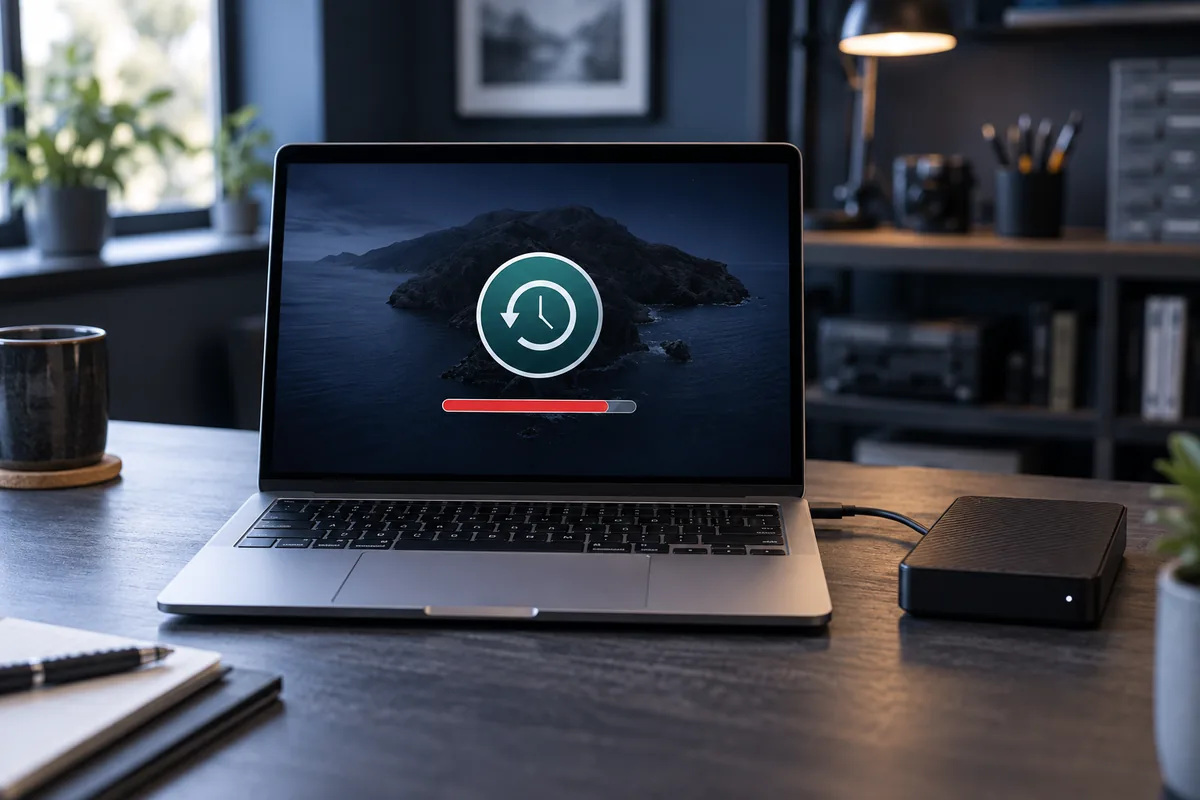
A connected drive does not mean a backup completed. Inspect the date of the last successful backup and any error message. Important files created afterwards may not yet have another copy. Establish what needs protecting first.
Space and backup history
Time Machine can manage older backups, but large changes may still require more space. Do not manually delete arbitrary internal folders. That can damage the history's integrity and make later restoration more difficult.
Is the drive dedicated to backups?
Other files stored on the same disk consume available space. They do not automatically become protected simply because backups are nearby. Consider a separate drive of sufficient capacity and verify that a new backup actually completes.
When capacity is not the cause
Disconnections, unusual sounds and read errors can indicate a cable or drive fault. Deleting older backups will not resolve that. Never format your only backup before another verified copy of important files exists.
Official manufacturer guidance ↗
Need help?
Describe the symptoms and share the model. We agree on the work and price before repair.